

-
GitHub Cloud
The standard cloud-hosted GitHub service -
GitHub Enterprise Server
Self-hosted GitHub instances for organizations with specific compliance or security requirements
Create GitHub App
To configure GitHub integration, you’ll need to create a GitHub App within your organization.- GitHub Cloud
- GitHub Enterprise Server
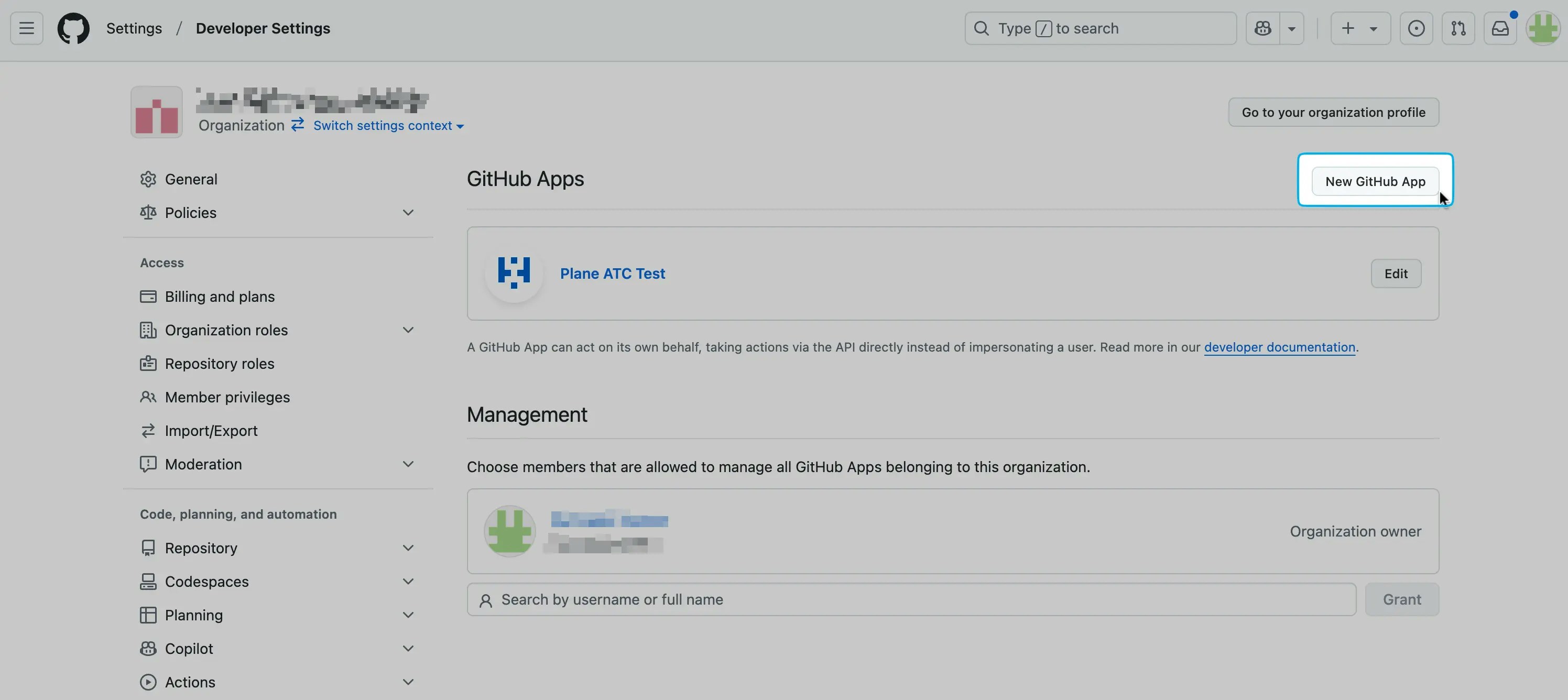
- Go to Settings > Developer Settings > GitHub Apps in your GitHub organization.
-
Click New GitHub App.
-
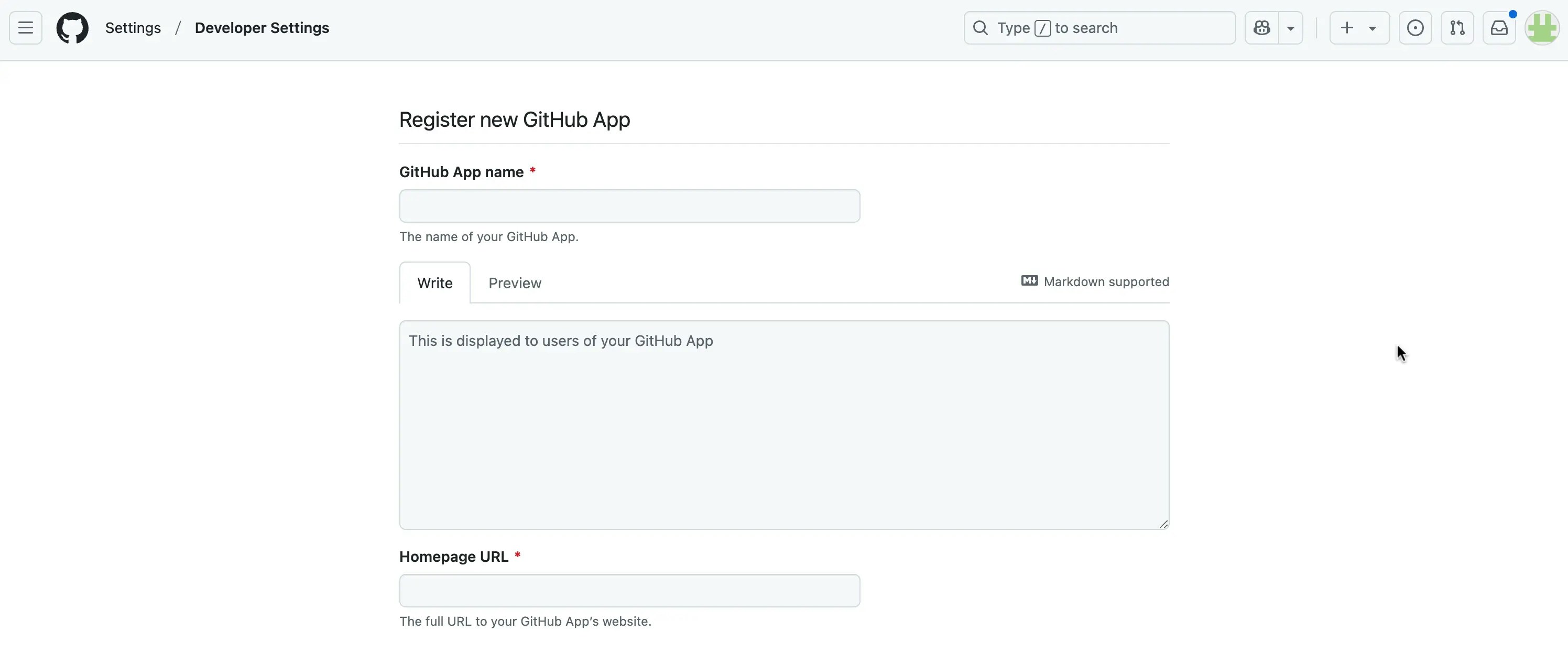
In the Register new GitHub App page, provide a GitHub App name and Homepage URL.
-
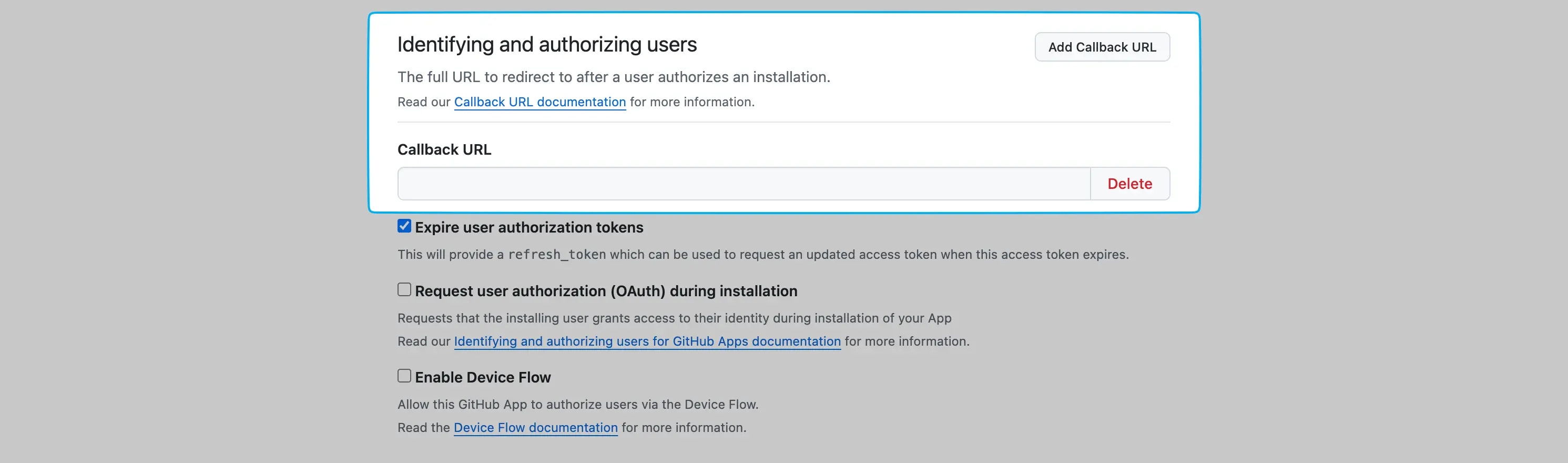
In the Identifying and authorizing users section, add the following Callback URLS.
These URLs allow Plane to verify and enable workspace connection with the Github App.
-
In the Post installation section, add the below Setup URL.
Redirects users to this URL after GitHub app installation.

- Turn on Redirect on update.
-
In the Webhook section, add the below Webhook URL.
This allows Plane to receive updates from GitHub repositories.

Set up permissions and events
-
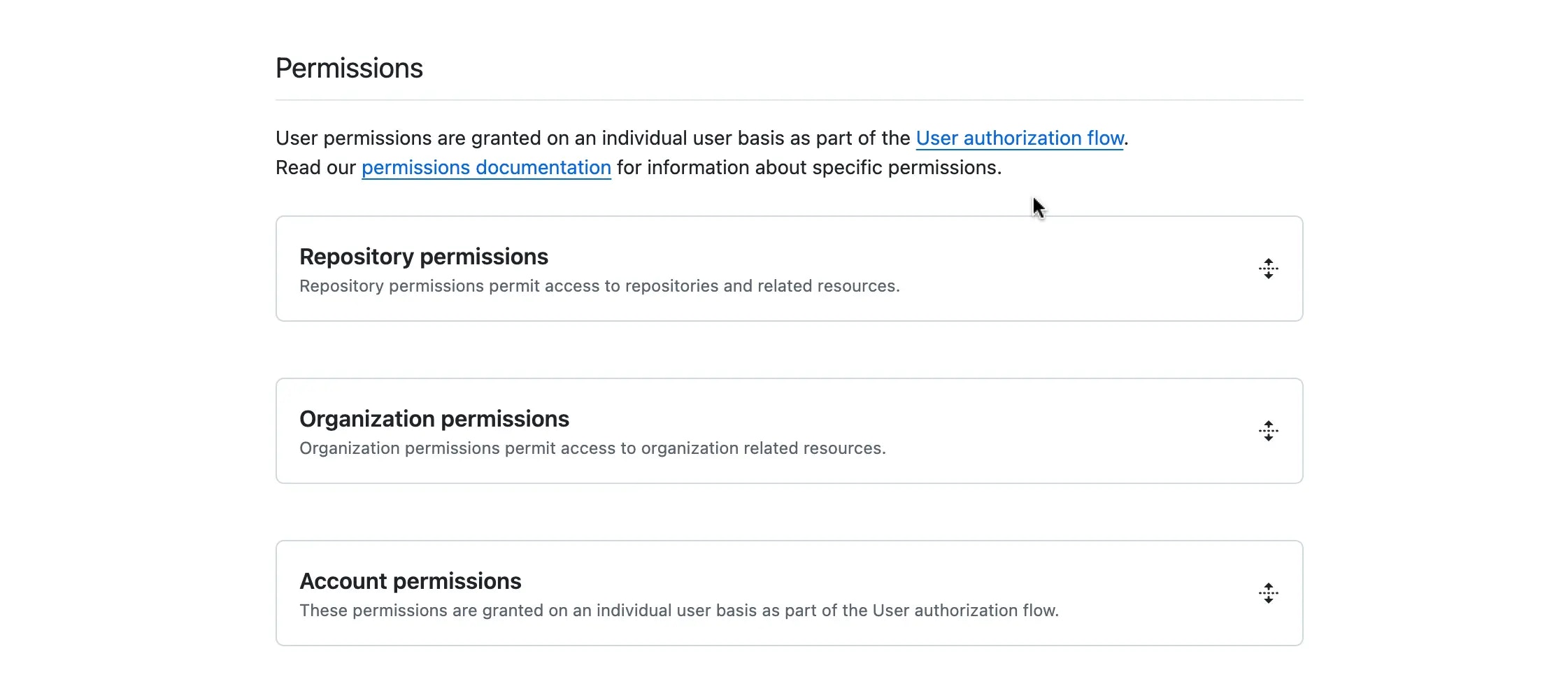
Add repository and account permissions by setting the Access dropdown next to each permission, as shown in the tables below.
 Account permissions
 -
In the Subscribe to events section, turn on all the required events below.
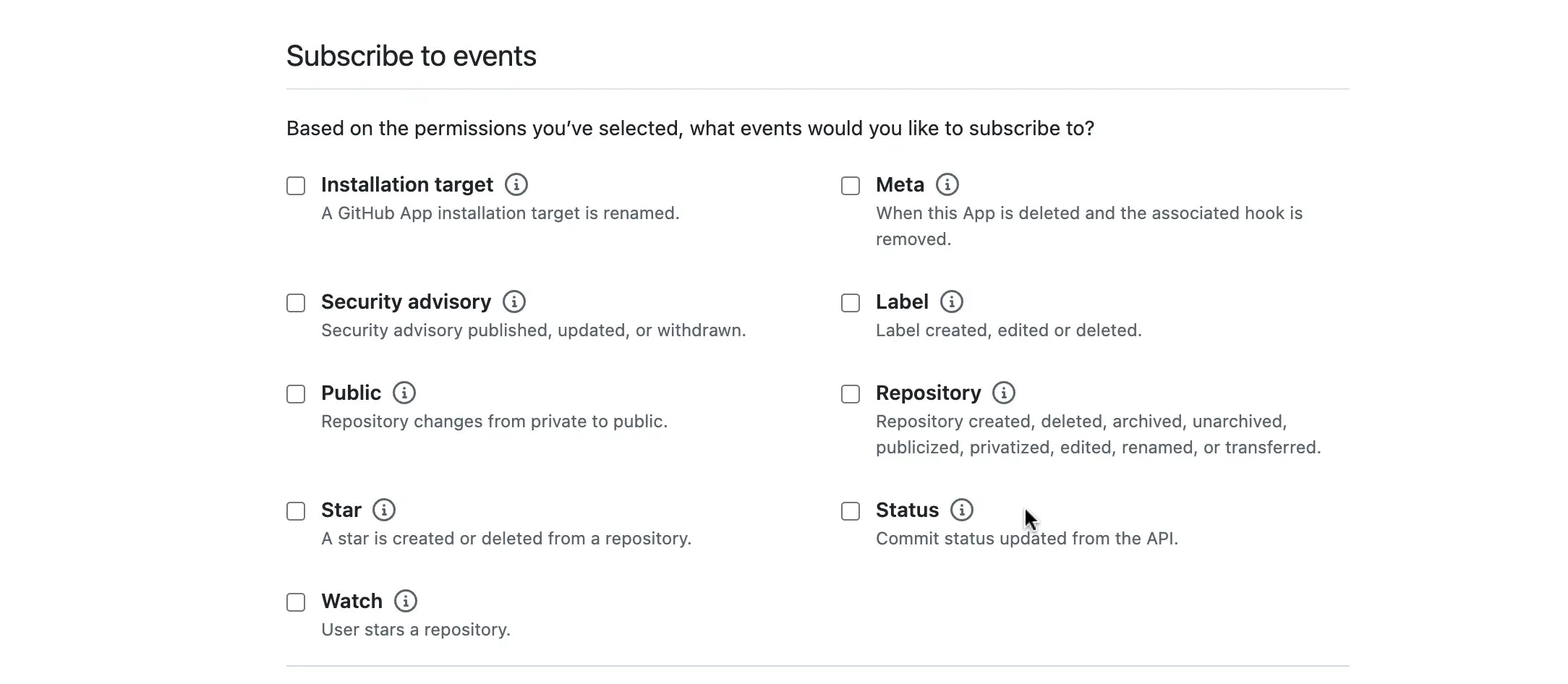
- Click the Create GitHub App button at the bottom of the page.
Configure Plane instance
- GitHub Cloud
- GitHub Enterprise Server
- Go back to Settings > Developer Settings > GitHub Apps.
- Click Edit on the GitHub you created.
-
In the General tab, under the Client secrets section, click Generate a new client secret.
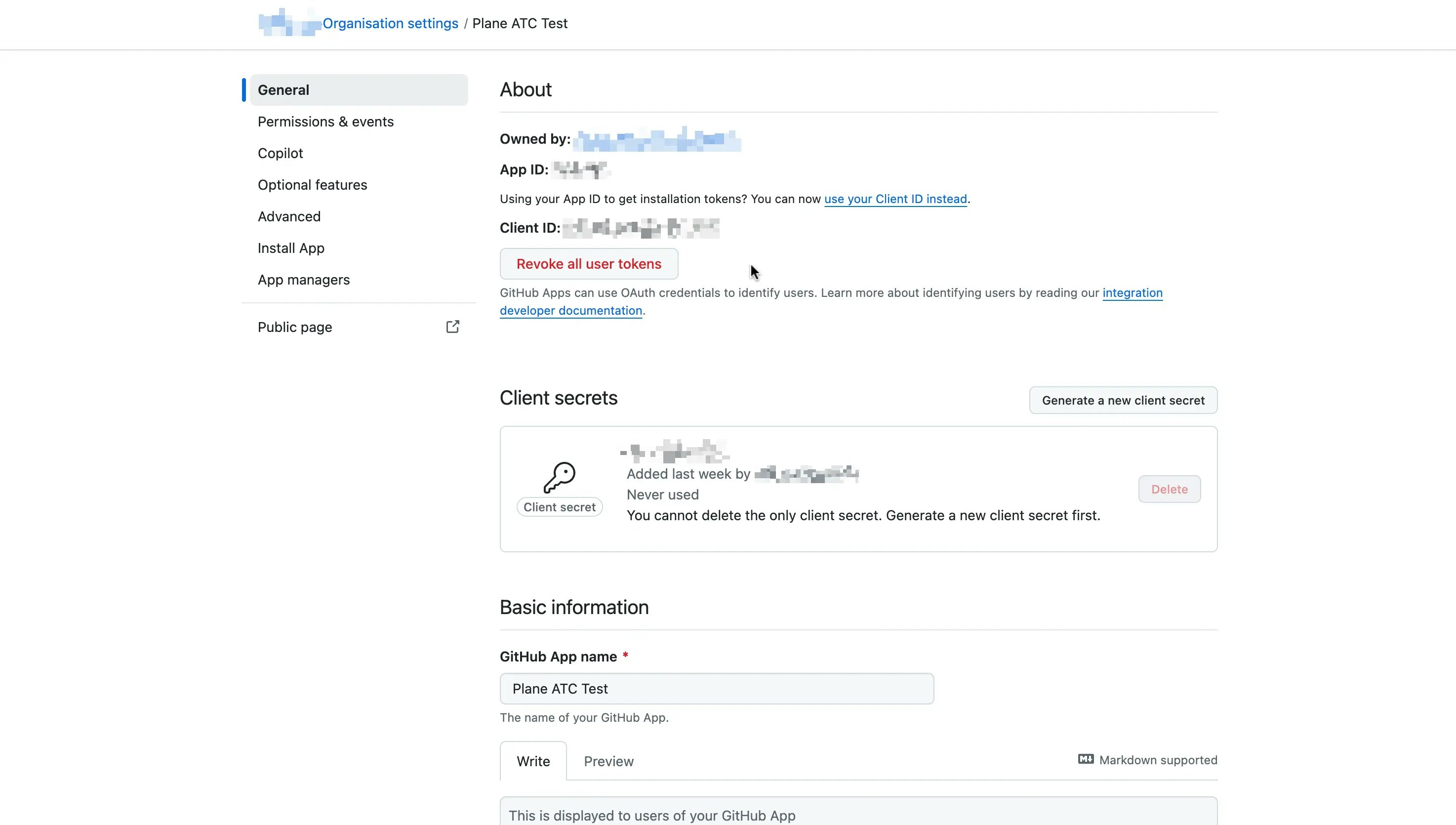
-
Scroll down to the Private keys section.
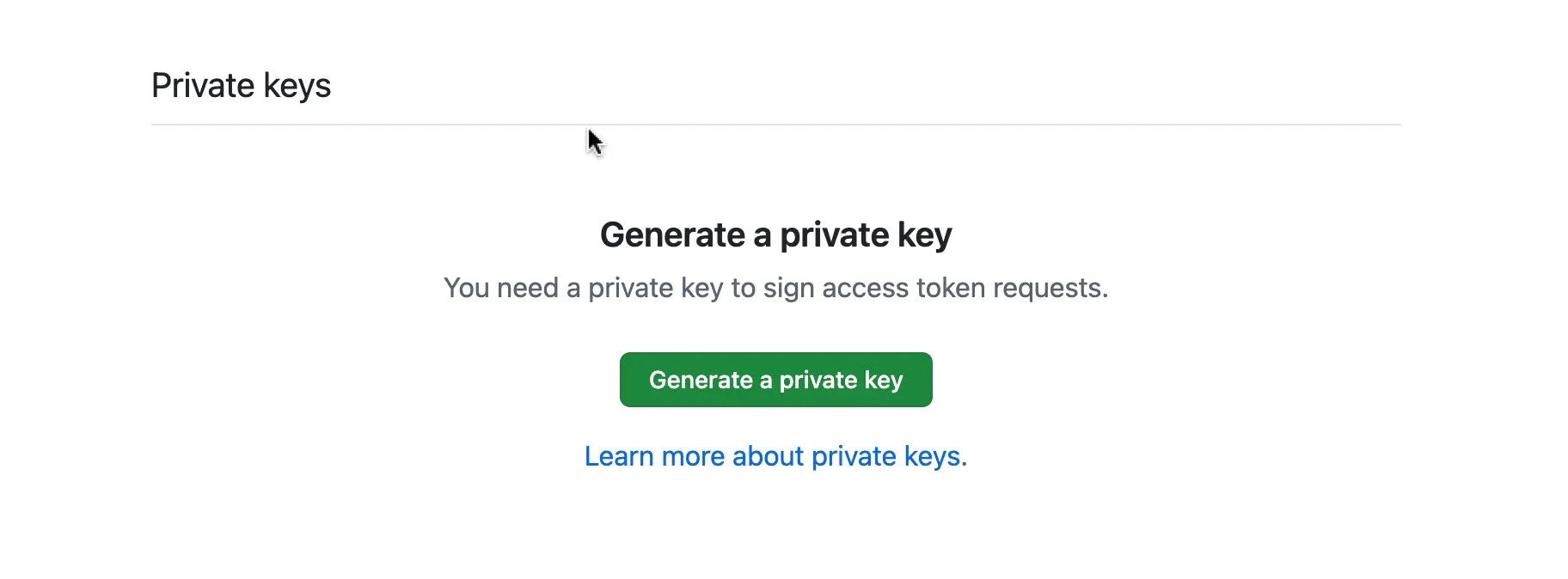
- Click Genereate a private key.
-
Retrieve the following details from the General tab:
- App ID
- Client ID
- Client secret
- GitHub App name
- Private key
-
Before adding the Private key as an environment variable, you’ll need to convert it to base64. Since private keys are typically multi-line, they can cause parsing errors or issues when setting environment variables. To avoid this, run the following command to convert the key to base64:
-
Add these environment variables with the values to your Plane instance’s
.envfile. - Save the file and restart the instance.
- Once you’ve completed the instance configuration, activate the GitHub integration in Plane.
Troubleshooting
Invalid private key
Error: Failed to create GitHub connection: Invalid keyData
This error usually occurs when the private key is not correctly generated. To fix this, follow the below steps.
- Generate a new private key.
- Convert the private key to base64.
- Add the private key to the
.envfile.
- Save the file and restart the instance.
Unable to connect GitHub organization account or personal account
Error: Invalid request callback URL.
This error usually occurs when the callback URL is not correctly configured or the GitHub App is not marked public. To fix this, follow the below steps.
- Check if the callback URL is correctly configured.
- Check if your GitHub App is marked public.
Application secret value not found
Error: Application secret value not found for key: x-github-id
This error usually occurs when the application secret is not correctly configured. To fix this, follow the below steps.
- Delete the
plane_app_details_githubkey from redis cache.del plane_app_details_github. - Set the
SILO_BASE_URLin env with plane self hosted url and restart the api server.export SILO_BASE_URL=https://<your-domain> - Run this command in api server shell
python manage.py reset_marketplace_app_secretsto reset the application secrets. - Try to connect again to the organization account to Plane.
Github integration suddenly stopped working after a while
This error usually occurs when the GitHub integration is not correctly configured. To fix this, follow the below steps.- Make sure you’ve
opted outof Server Token expiration and reconnect once again to the organization account to Plane. Check in Github App Settings > Optional Features