

An instance is a single self-managed installation of Plane on a private cloud or server that the
Instance admin controls and administers. A single instance can house multiple workspaces.There may also be cases where a user IRL is running multiple instances, e.g., when using Plane for several clients. An Instance admin role will have to be declared for each of those instances, but it is okay to use the same email address for all of them./god-mode, a route for features that help them administer and govern their Plane instance better for all users of that instance.
Settings
God Mode features a few screens as shown below.General
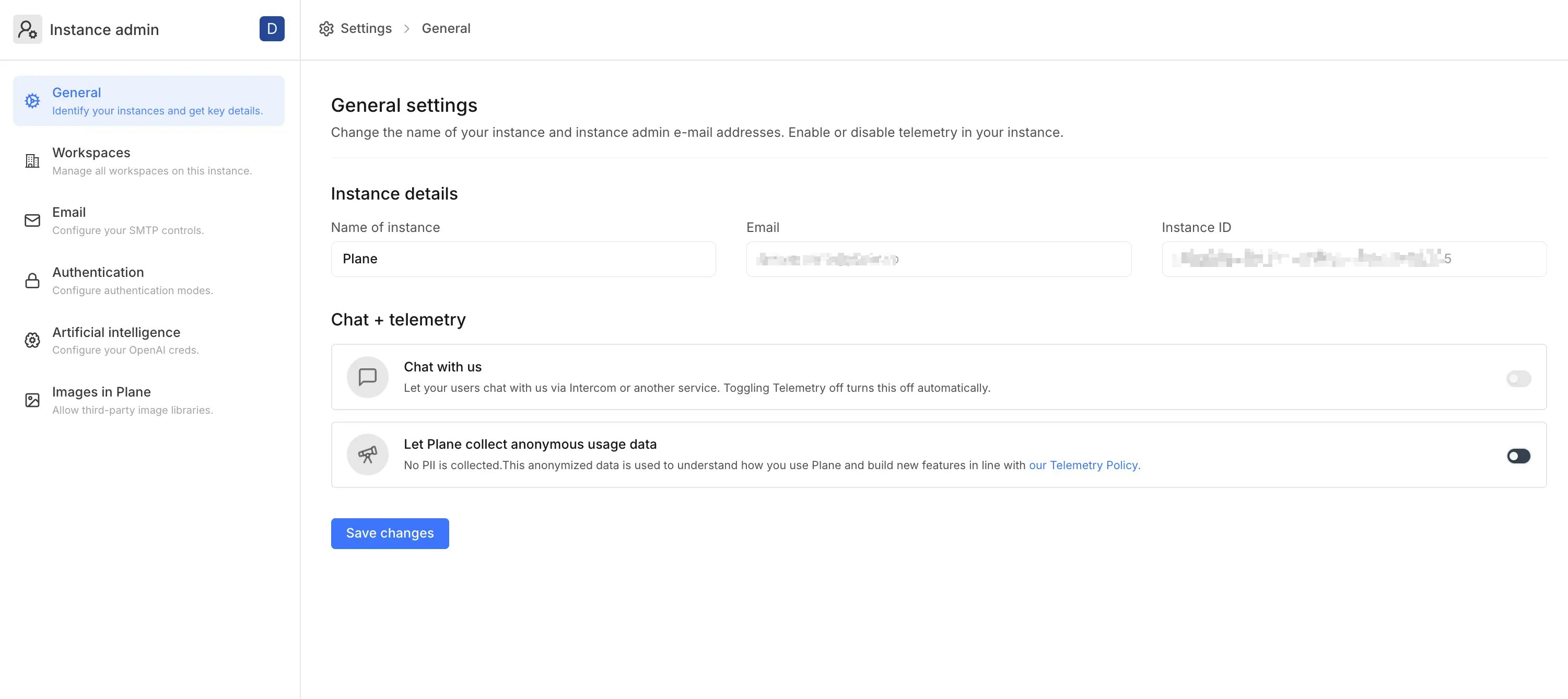
The General settings page allows you to view or configure core instance details and telemetry preferences. Here’s what you can manage:-
Name of instance
Customize the name of your instance. -
Email
Displays the instance admin email address. -
Instance ID
Displays a unique identifier for your instance. -
Chat with us
Enable or disable in-app chat support for users. Disabling telemetry automatically turns this off. -
Let Plane collect anonymous usage data
Plane collects anonymized usage data (no PII) to help improve features and overall experience. You can turn this off anytime. See Telemetry for more info.
Workspaces
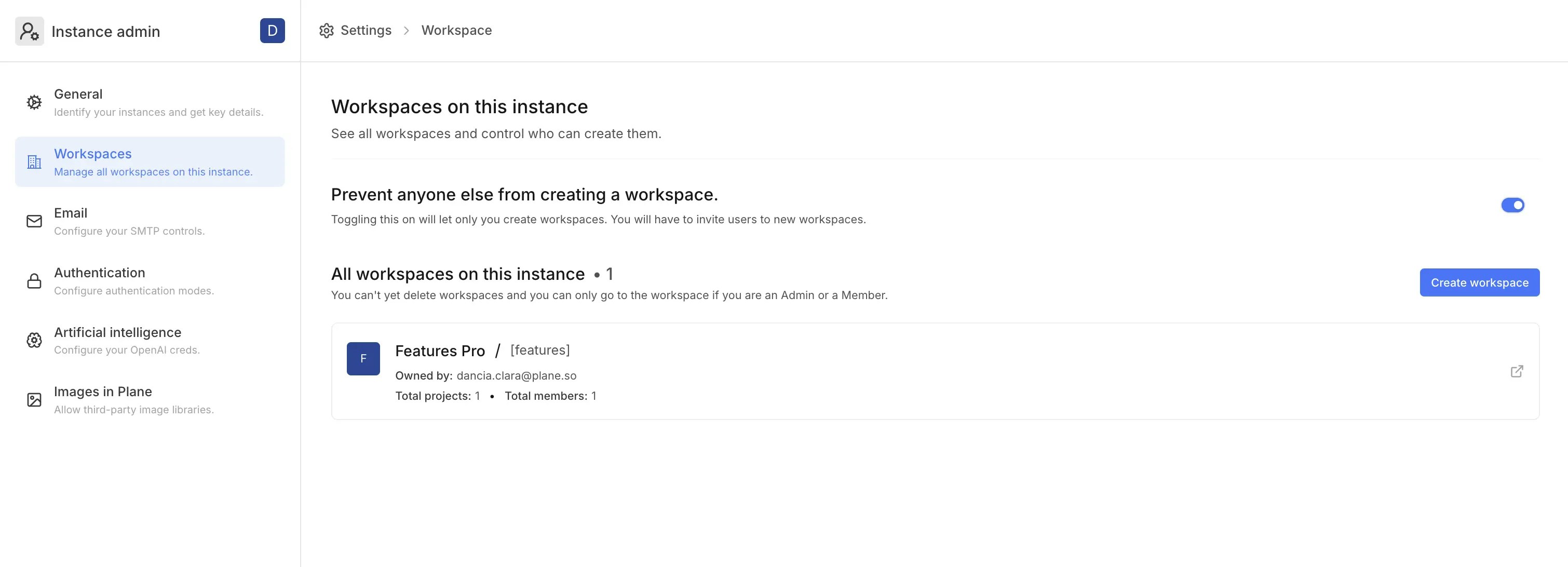
The Workspaces section allows you to manage all workspaces within your Plane instance.-
View all Workspaces
Access a complete list of workspaces on your instance. -
Create Workspaces
You can create new workspaces directly from this section. If workspace creation is restricted, only the instance admin will have this ability. -
Restrict Workspace creation
Toggle the Prevent anyone from creating a workspace option to prevent anyone else from creating workspaces. Once enabled, only you (the instance admin) can create new workspaces.
Workspace deletion is currently not supported.
Authentication
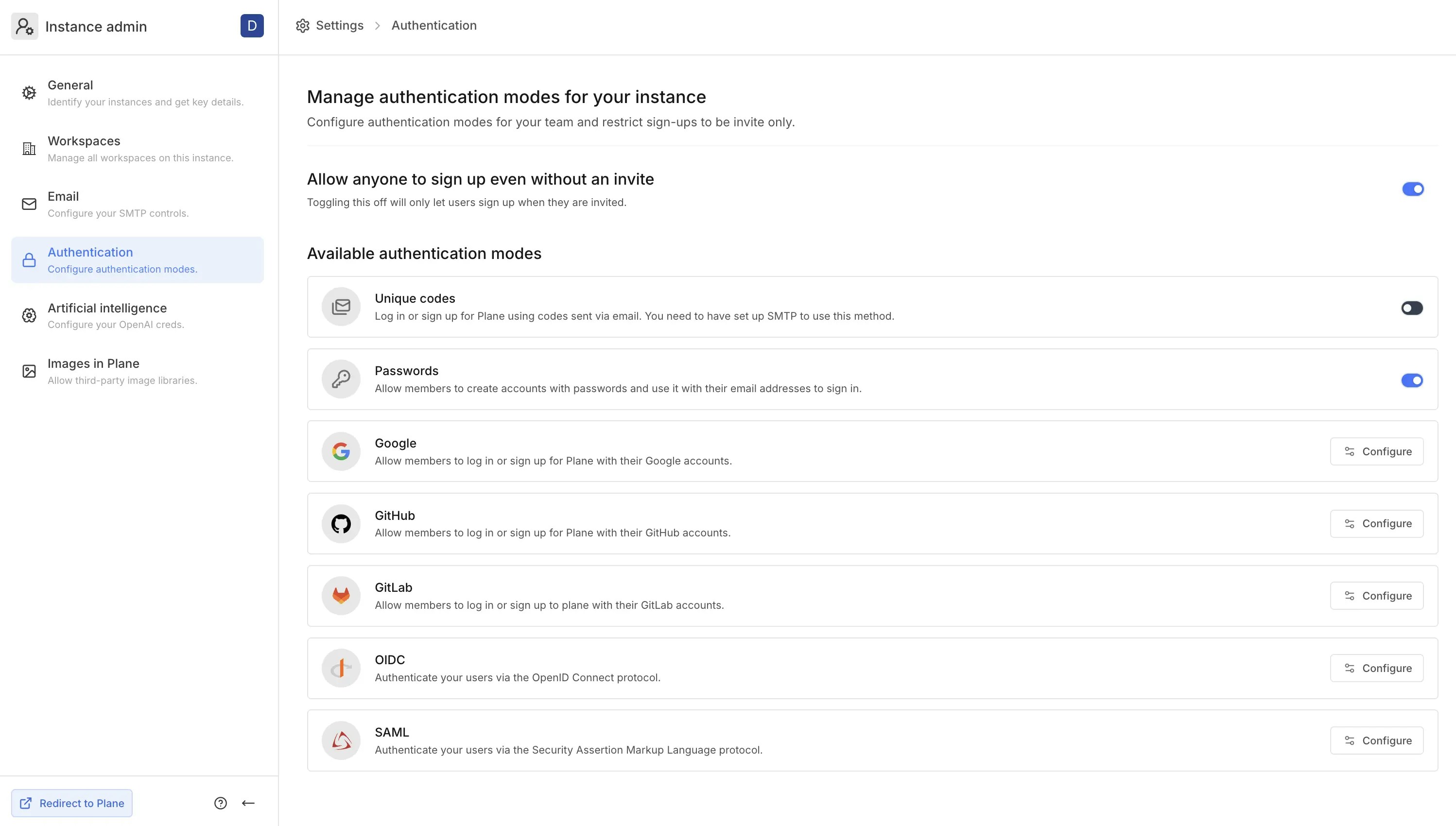
Control what SSO and OAuth services your users can use to sign up and log in to your Plane instance. You can also toggle unique code and password logins on and off from here. Learn more here.- Allow anyone to sign up without an invite
Toggle this setting off if you want your users to join the instance only if they receive an invite.
This is where you will see new SSO services and custom OAuth configs in the future.
Artificial intelligence
Plane supports the use of AI throughout your projects. For now, we support OpenAI’s APIs and keys. You can configure them here or leave them blank if you don’t wish to offer AI features to your users. Your Plane experience remains largely unchanged if you don’t set this up.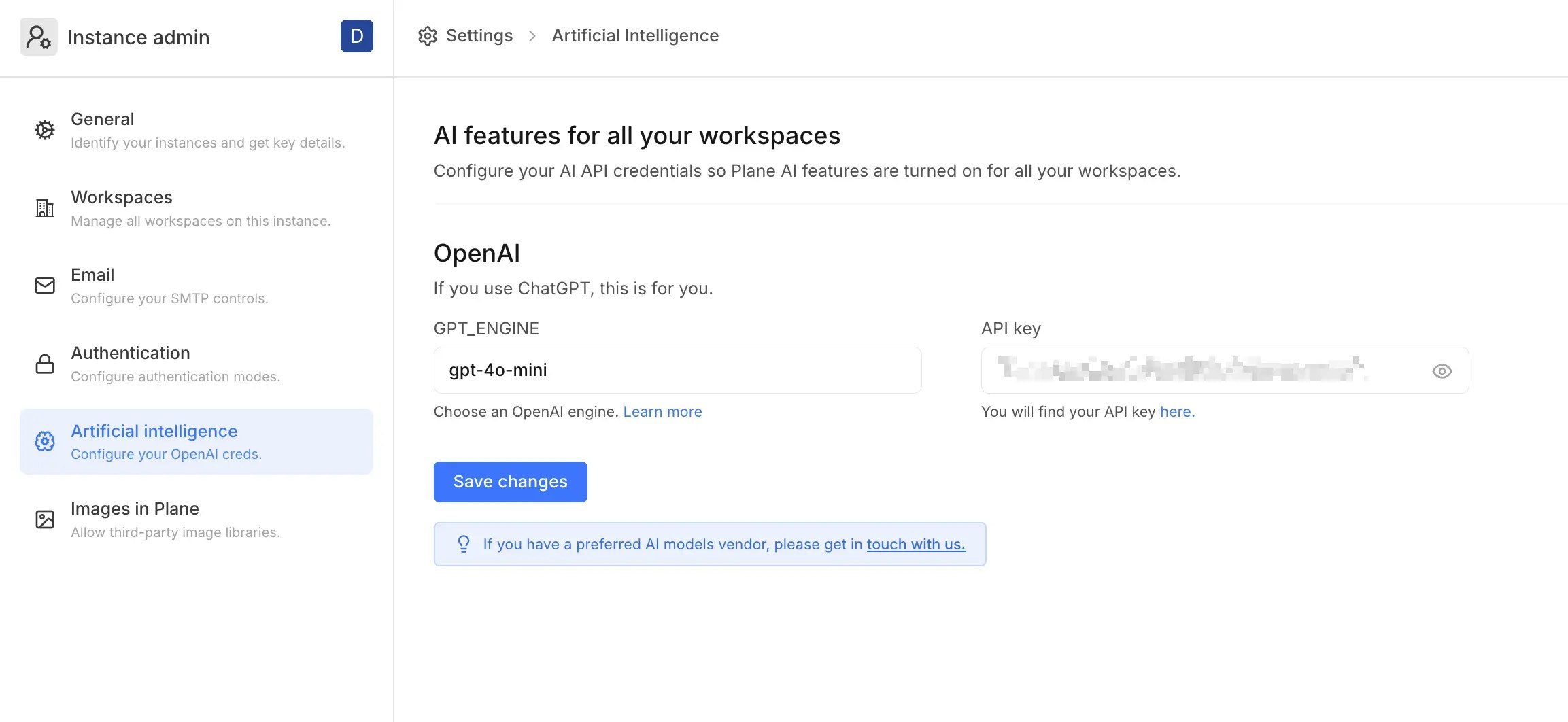
Images in Plane
You can use your own third-party libraries to update images in project settings. Configure your Unsplash key here. When we add more image libraries, they will show up here.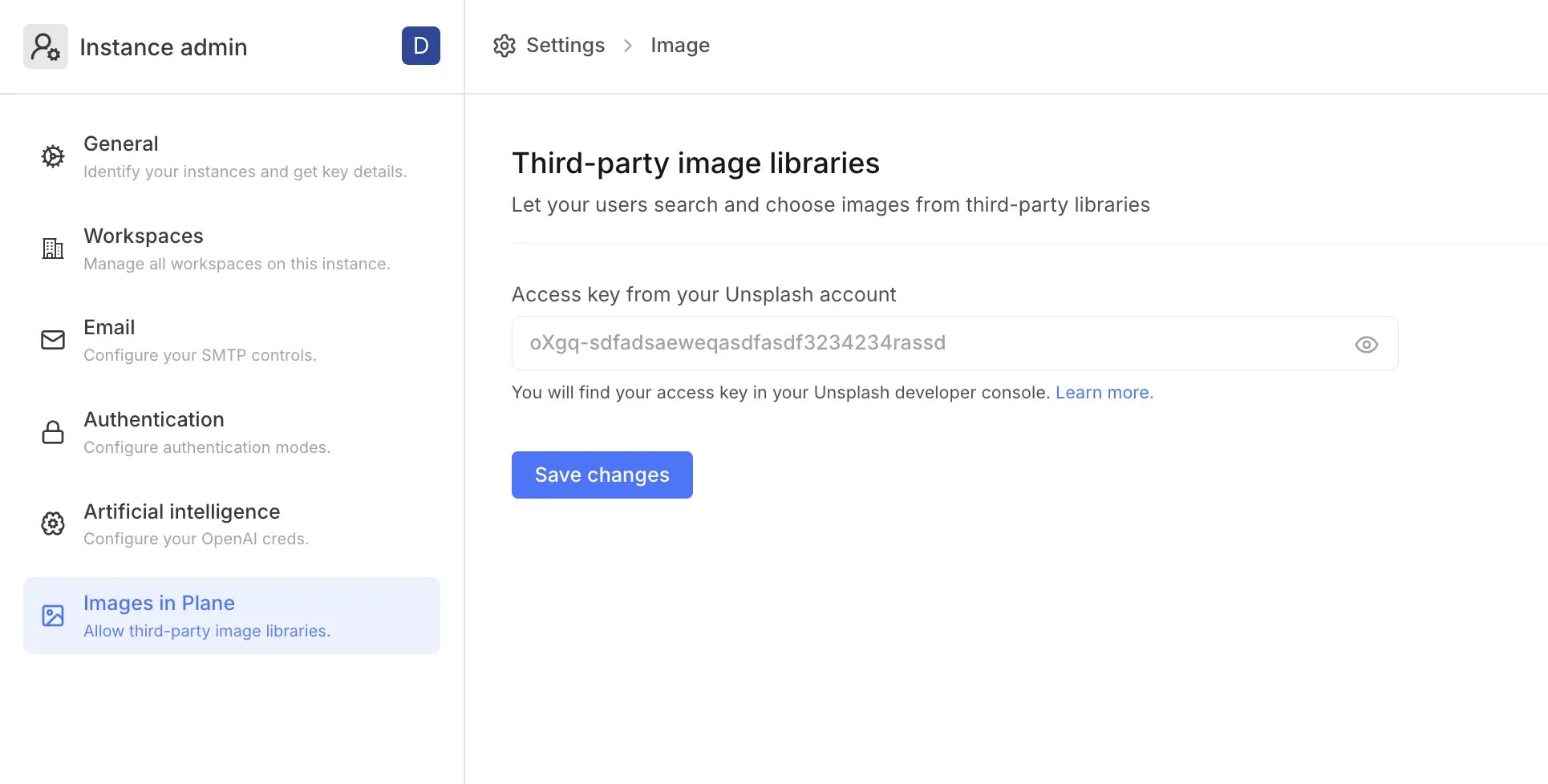
Add instance admin
To grant a user full administrative access (including God mode) to your self-hosted Plane instance, you’ll need to assign them the Instance Admin role. Instance admins have unrestricted control over all configurations and settings within the instance. To promote an existing user to Instance Admin, execute the following command in your terminal:Soon, we will introduce God Mode for our Cloud users as well so they can manage their workspaces better. To get notified about this, sign up here.
FAQs
How do you know who an Instance admin is?
How do you know who an Instance admin is?
Whoever spins up the instance or upgrades to v0.14, we assume, is the instance admin. When you see Let’s secure your instance, enter your email-password combo. If you are already using Plane with those credentials, you will be logged in and will see /god-mode features. If not, we will create a new user on your local instance and you will see /god-mode.Our shrewd guess right now is users are technical enough to upgrade to or bring up a new instance with v0.14 are instance admins. If there’s a case where this isn’t true, please reach out to us before you upgrade or set up your fresh instance.
What if I don’t complete secure instance set-up at the time of the upgrade?
What if I don’t complete secure instance set-up at the time of the upgrade?
We strongly recommend completing set-up at upgrade so your regular users can access Plane without trouble. Because we are introducing several sensitive admin features in 
God Mode, we will show an instance-not-set-up screen to your regular users until such a time that you can complete the setup.What has changed with how existing regular users of my instance log in?
What has changed with how existing regular users of my instance log in?
All existing users will log in with their usual email address-password combos if they are already doing it. If they haven’t been using a password when not OAuthing into Plane, they will now need to. If OAuth is enabled, users can continue using your OAuth methods. New users will need to choose a password or OAuth into Plane.
What will happen to the default captain@plane.so account that you shipped so far?
What will happen to the default captain@plane.so account that you shipped so far?
For all new instances, there won’t be a
captain@plane.so account. Instance set-up will allow you to set up a workspace and set workspace and project admins.For existing instances, the instance admin’s email will be added to each project with the same permissions as captain@plane.so’s so you can remove that email completely from your workspaces and projects.This is unreal, but I have an instance that has a /god-mode path already. I can’t access my Plane instance. Help!
This is unreal, but I have an instance that has a /god-mode path already. I can’t access my Plane instance. Help!
How will emails for password resets and onboarding be sent to users of my instance(s)?
How will emails for password resets and onboarding be sent to users of my instance(s)?
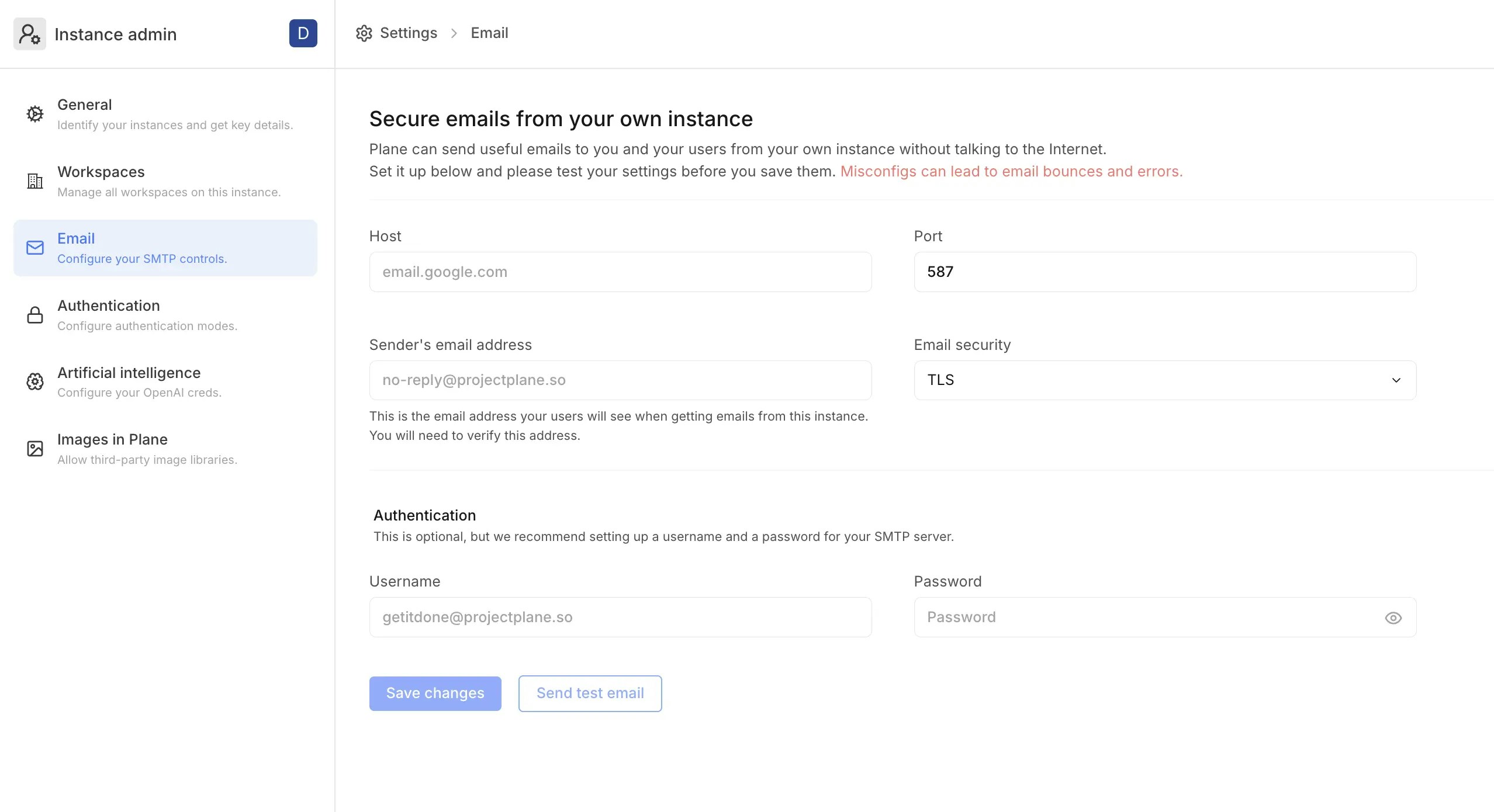
We have always let you configure your own SMTP server to send emails from within your instance. It’s also why we are being deliberate about leading the instance admin of an existing instance to
/god-mode first. After completing secure instance set-up now, you can configure your SMTP server on the UI instead of via .env variables. We strongly recommend you do that to avoid password-reset failures and failures in email delivery.Please reach out to us on Discord if you haven’t set up SMTP and are facing troubles with your users logging in.Why are you introducing passwords for app.plane.so users? What’s happening with unique links to sign up and sign in?
Why are you introducing passwords for app.plane.so users? What’s happening with unique links to sign up and sign in?
Unique links are secure and relatively easier, but we have heard from enough of our Cloud users that they would like to log in using a more permanent and easier method. Should you want to continue using unique codes, you are covered. We will keep that option alive for good.While using Google or GitHub are good options already, not all of you would want to use them. For those that prefer a password and would like to do away with codes, we want to make that option available.
Is there a God Mode for Cloud admins, too?
Is there a God Mode for Cloud admins, too?
Not now, but soon enough, there will be a
God Mode for Cloud admins.