

-
GitLab.com
The standard cloud-hosted GitLab service -
GitLab Self-managed
Self-hosted GitLab instances for organizations with specific compliance or security requirements
Create GitLab Application
- GitLab Cloud
- GitLab Self-managed
- On the left sidebar in GitLab, select your avatar.
- Select Preferences tab.
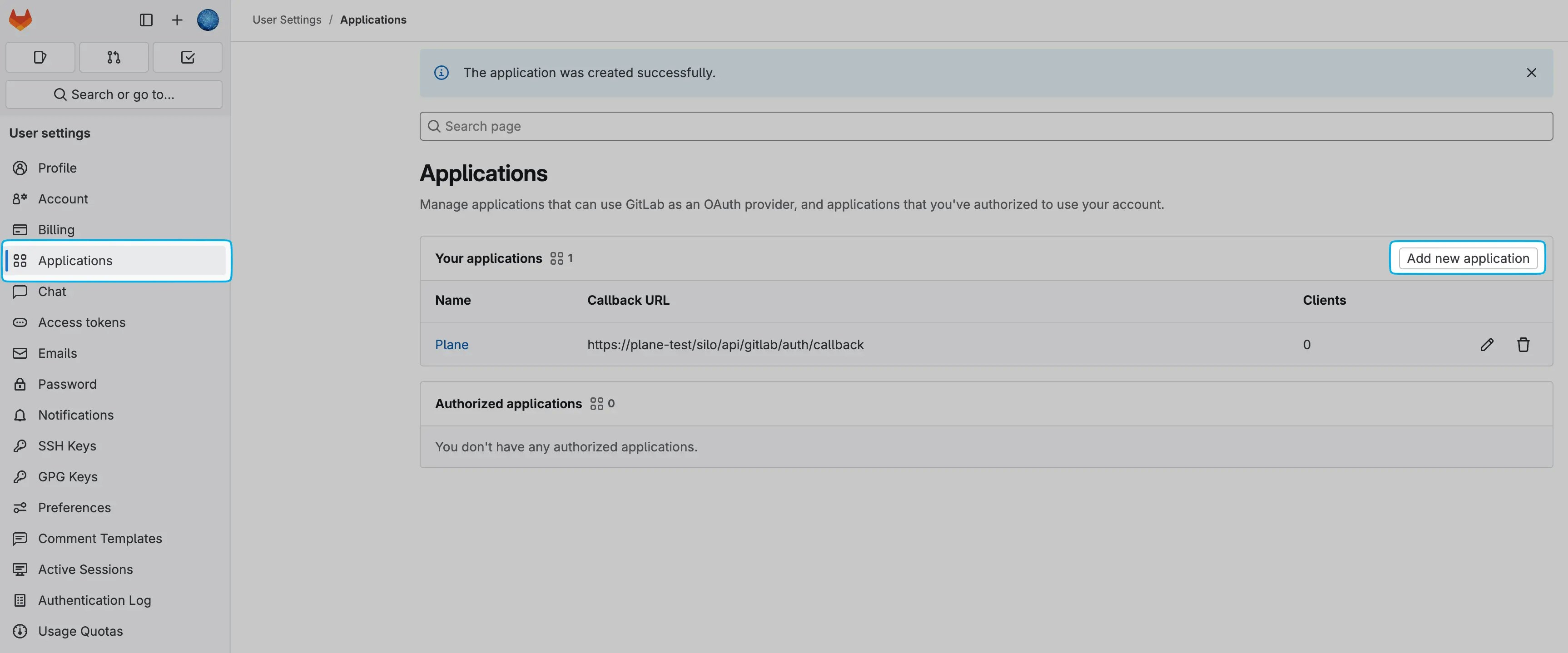
- Navigate to the Applications tab.
-
Click on Add new application to begin the setup.
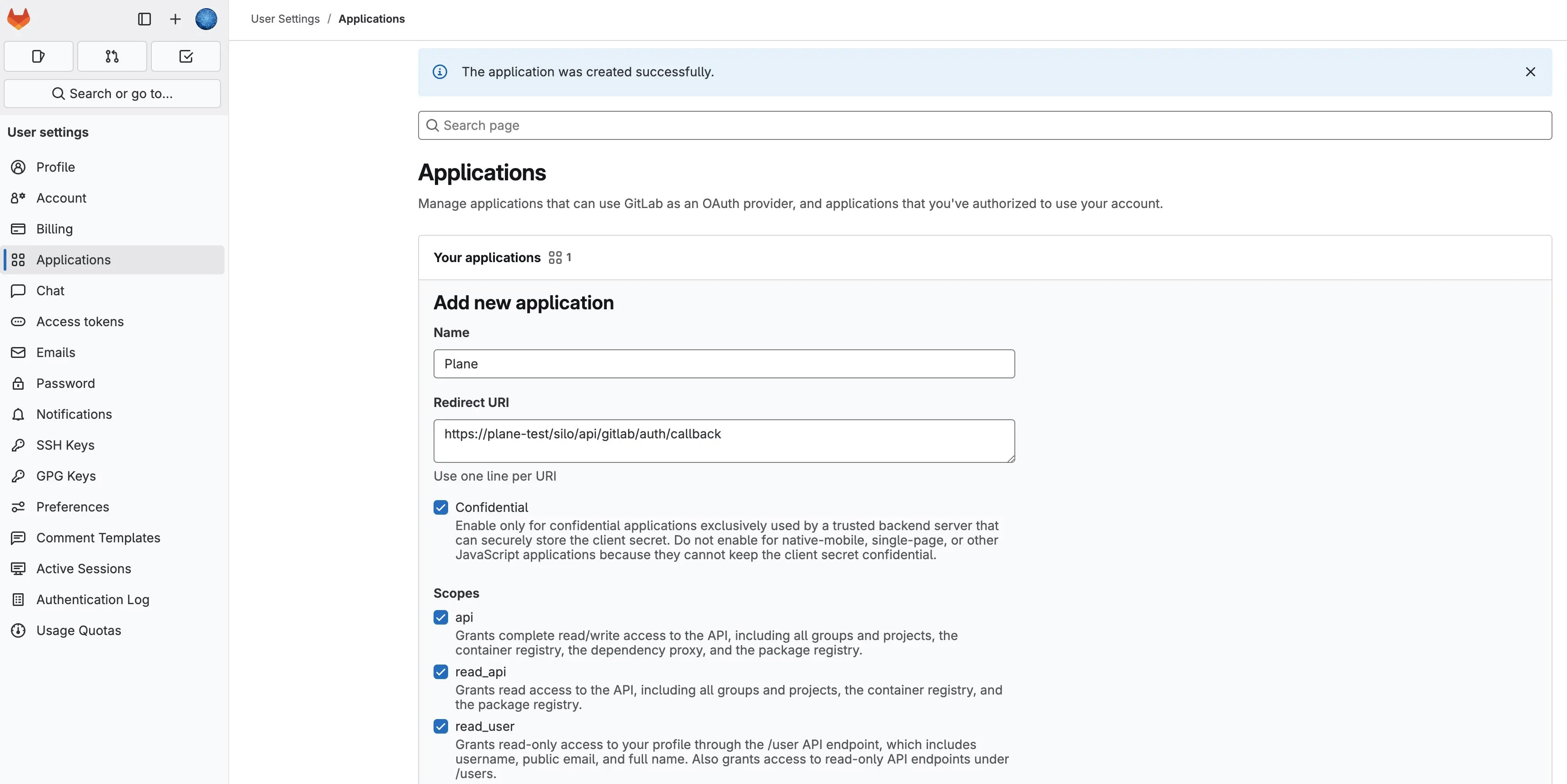
- Provide a Name for your application.
-
Enter the following Redirect URI, replacing [YOUR_DOMAIN] with your actual domain:
-
Check the Confidential box.
-
Set permissions by selecting the required Scopes. The table below explains each scope:
- Click Save Application to finalize the setup.
Configure Plane instance
- GitLab Cloud
- GitLab Self-managed
-
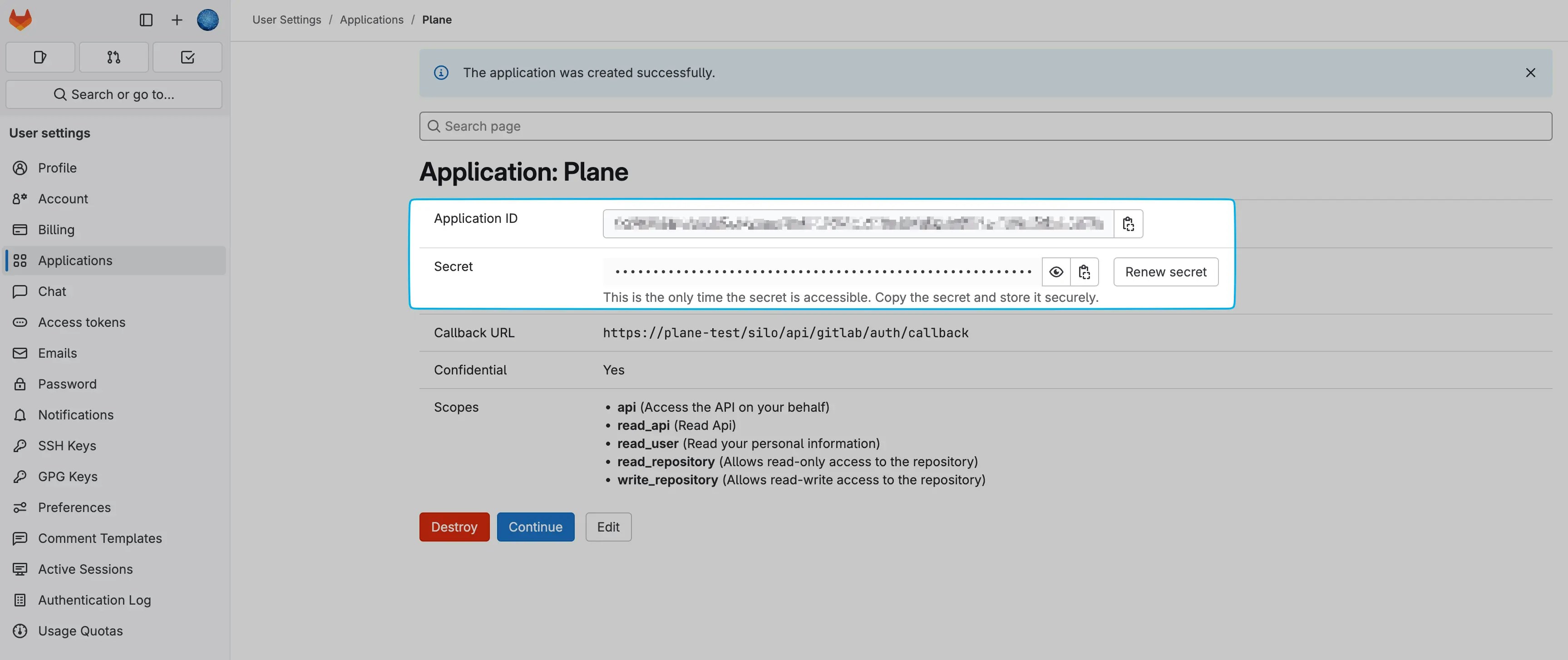
Copy the Application ID and Secret from the newly created application.
-
Add these environment variables with the values to your Plane instance’s
.envfile. - Save the file and restart the instance.
- Once you’ve completed the instance configuration, activate the GitLab integration in Plane.