> ## Documentation Index
> Fetch the complete documentation index at: https://developers.plane.so/llms.txt
> Use this file to discover all available pages before exploring further.
# Update Plane version
Keeping Plane up to date ensures you’re using the latest features, improvements, and security fixes. Here’s how to upgrade your Plane installation with a single command.
The upgrade process may involve a brief downtime as services are updated and restarted.
## Prerequisites
We recommend creating a backup of your data before any version updates. See [Backup data](/self-hosting/manage/backup-restore).
## Check version
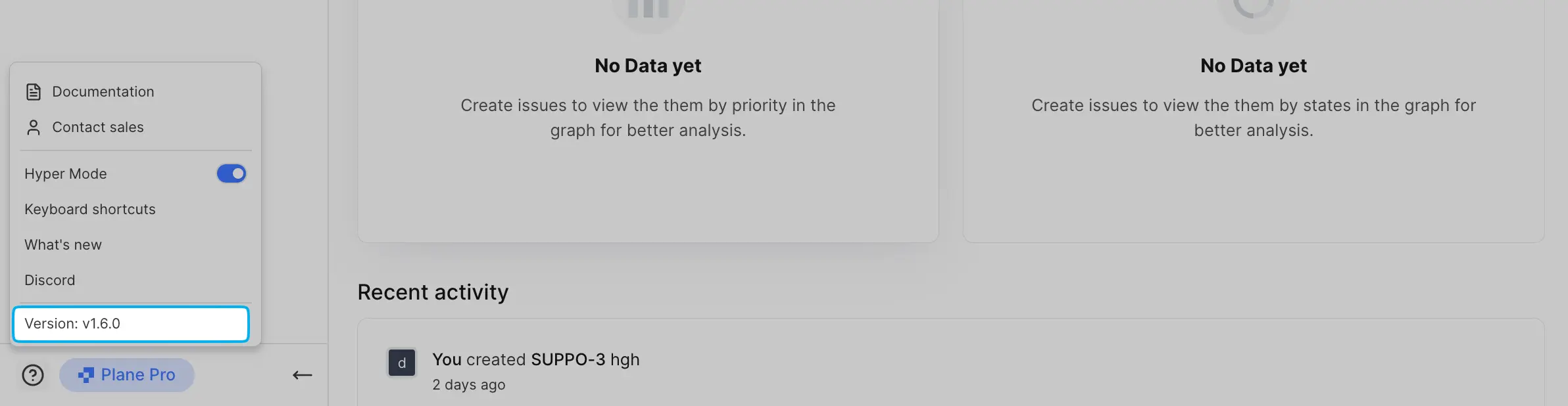
You can quickly check your Plane version by clicking the **?** icon on the sidebar.
## Update version
For Commercial Edition v1.13.0, ensure you're using the **latest version of Docker Compose**. Check your Docker Compose version with `docker-compose --version` and update if needed.
**Prime CLI is for Docker installations only.** These commands only work on Plane instances originally installed using `prime-cli`.
1. Update your Prime CLI with the command ↓:
```bash theme={null}
sudo prime-cli update-cli
```
The latest version of the CLI ensures your Plane upgrades happen smoothly.
2. To update Plane to the latest version, run:
```bash theme={null}
sudo prime-cli upgrade
```
This command checks for the latest version of Plane and applies the upgrade if a new version is available.
This guide covers how to upgrade from version 0.14.0 and above. If you’re running version 0.13.2 or below, first follow the guide to [upgrade to version v0.14.0](/self-hosting/manage/upgrade-from-0.13.2-0.14.0) before continuing with these steps.
## Prerequisites
Before starting, make a backup of your Plane instance. For detailed steps, see the [Backup data](/self-hosting/manage/backup-restore#community-edition) section. This is strongly recommended to ensure you have a safe restore point.
## Update version
1. Download the latest stable release with ↓:
```bash theme={null}
curl -fsSL -o setup.sh https://github.com/makeplane/plane/releases/latest/download/setup.sh
```
2. Execute the setup script with ↓:
```bash theme={null}
./setup.sh
```
This will bring up a menu with several options. Select option `5` to upgrade:
```bash theme={null}
Select a Action you want to perform:
1) Install (x86_64)
2) Start
3) Stop
4) Restart
5) Upgrade
6) View Logs
7) Backup Data
8) Exit
Action [2]: 5
```
Choosing this option stops all services and downloads the latest `docker-compose.yaml` and `variables-upgrade.env` files. The `plane.env` file won’t be overwritten, so your existing environment settings are safe.
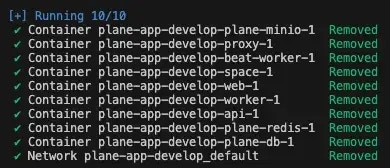
You’ll see a message indicating the services have been stopped.
 3. After the update completes, select `6` to exit the prompt.
4. After the upgrade, open `variables-upgrade.env` and compare it with your `plane.env` file. Copy any new variables from `variables-upgrade.env` to your `plane.env` file and set the correct values. This step is essential to ensure that all configuration changes are in place for the latest version.
5. Once your `plane.env` file is updated, start your Plane instance again by selecting option `2`.
3. After the update completes, select `6` to exit the prompt.
4. After the upgrade, open `variables-upgrade.env` and compare it with your `plane.env` file. Copy any new variables from `variables-upgrade.env` to your `plane.env` file and set the correct values. This step is essential to ensure that all configuration changes are in place for the latest version.
5. Once your `plane.env` file is updated, start your Plane instance again by selecting option `2`.