> ## Documentation Index
> Fetch the complete documentation index at: https://developers.plane.so/llms.txt
> Use this file to discover all available pages before exploring further.
# Configure GitHub App for Plane integration
This guide walks you through setting up a GitHub App to enable GitHub integration for your Plane workspace on a self-hosted instance. Since self-hosted environments don’t come pre-configured for GitHub, you’ll need to set up the necessary authentication, permissions, and webhooks to ensure smooth integration.
This guide covers configuration for both:
* **[GitHub Cloud](/self-hosting/govern/integrations/github?edition=github-cloud#create-github-app)**\
The standard cloud-hosted GitHub service
* **[GitHub Enterprise Server](/self-hosting/govern/integrations/github?edition=github-enterprise#create-github-app)**\
Self-hosted GitHub instances for organizations with specific compliance or security requirements
In this guide, you’ll:
1. [Create and configure a GitHub App](/self-hosting/govern/integrations/github#create-github-app)
2. [Set up permissions and events](/self-hosting/govern/integrations/github#set-up-permissions-and-events)
3. [Configure your Plane instance](/self-hosting/govern/integrations/github#configure-plane-instance)
**Activate GitHub integration**
After creating and configuring the GitHub app and configuring the instance as detailed on this page, you'll need to [setup the GitHub integration](https://docs.plane.so/integrations/github) within Plane.
## Create GitHub App
To configure GitHub integration, you'll need to create a GitHub App within your organization.
1. Go to **Settings > Developer Settings > GitHub Apps** in your GitHub organization.
2. Click **New GitHub App**.
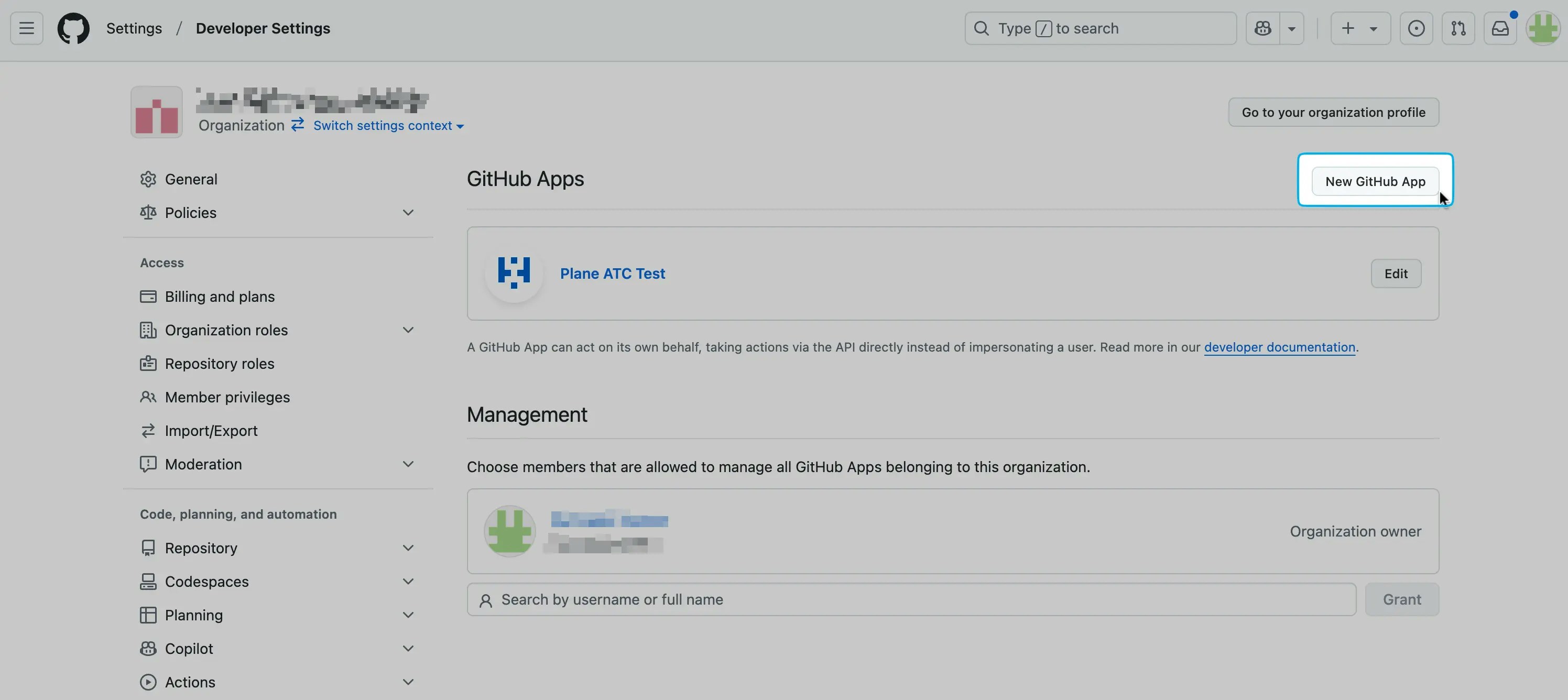 3. In the **Register new GitHub App** page, provide a **GitHub App name** and **Homepage URL**.
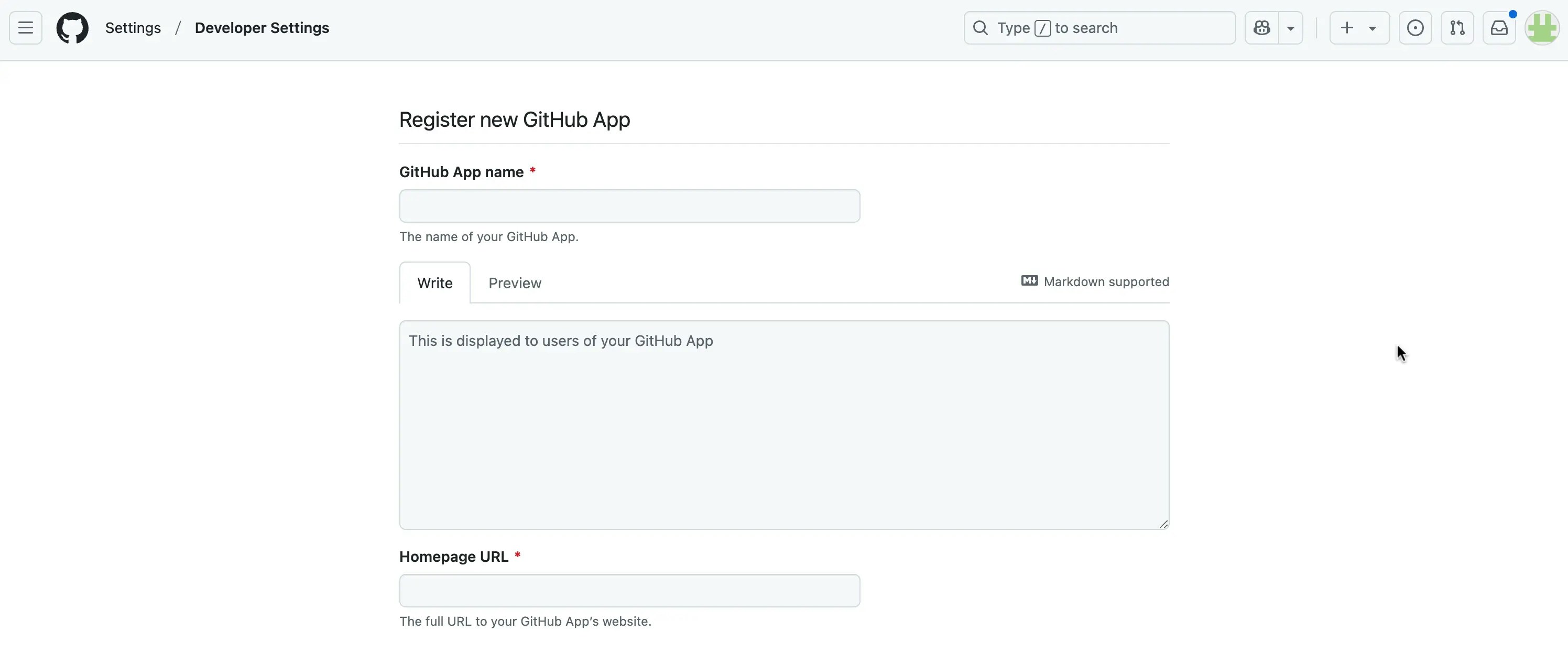 4. In the **Identifying and authorizing users** section, add the following **Callback URLS**.
```bash theme={null}
https:///silo/api/github/auth/callback
https:///silo/api/github/auth/user/callback
```
These URLs allow Plane to verify and enable workspace connection with the Github App.
4. In the **Identifying and authorizing users** section, add the following **Callback URLS**.
```bash theme={null}
https:///silo/api/github/auth/callback
https:///silo/api/github/auth/user/callback
```
These URLs allow Plane to verify and enable workspace connection with the Github App.
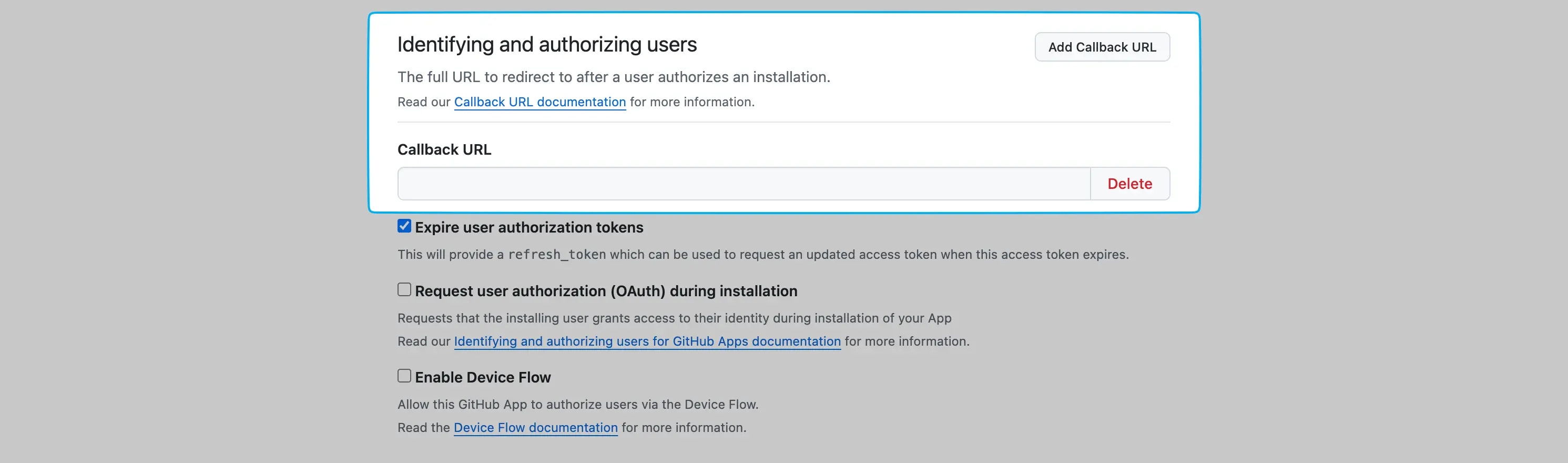 5. In the **Post installation** section, add the below **Setup URL**.
```bash theme={null}
https:///silo/api/github/auth/callback
```
Redirects users to this URL after GitHub app installation.
5. In the **Post installation** section, add the below **Setup URL**.
```bash theme={null}
https:///silo/api/github/auth/callback
```
Redirects users to this URL after GitHub app installation.
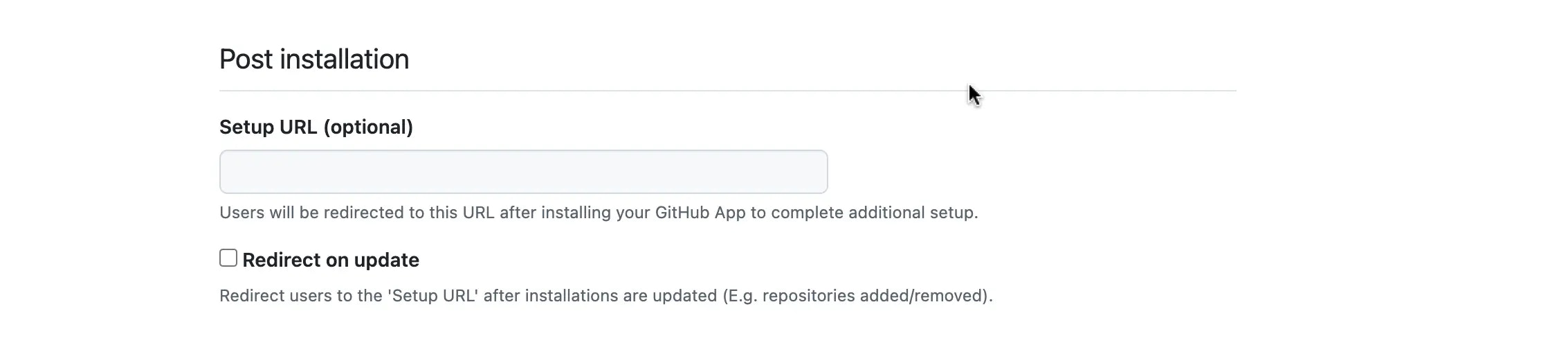 6. Turn on **Redirect on update**.
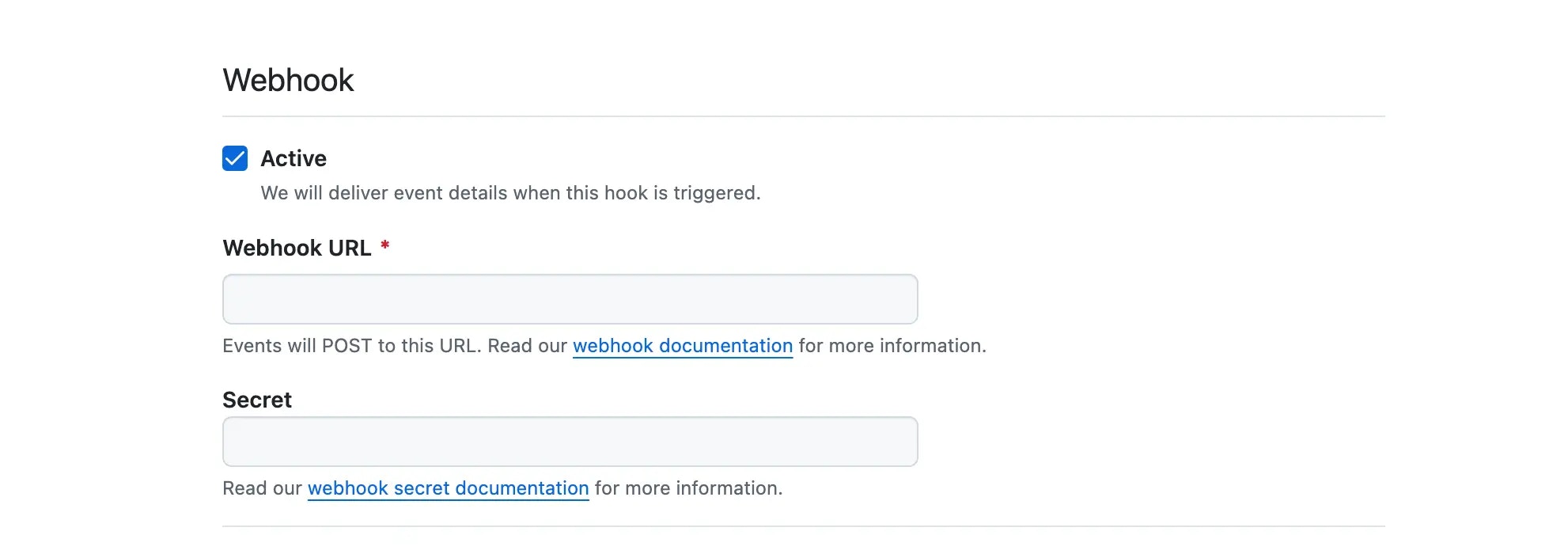
7. In the **Webhook** section, add the below **Webhook URL**.
```bash theme={null}
https:///silo/api/github/github-webhook
```
This allows Plane to receive updates from GitHub repositories.
6. Turn on **Redirect on update**.
7. In the **Webhook** section, add the below **Webhook URL**.
```bash theme={null}
https:///silo/api/github/github-webhook
```
This allows Plane to receive updates from GitHub repositories.
 1. Go to **Settings > Developer Settings > GitHub Apps** in your GitHub organization.
2. Click **New GitHub App**.
3. In the **Register new GitHub App** page, provide a **GitHub App name** and **Homepage URL**.
4. In the **Identifying and authorizing users** section, add the following **Callback URLS**.
**For Plane cloud instance**
```bash theme={null}
https://silo.plane.so/api/oauth/github-enterprise/auth/callback
https://silo.plane.so/api/oauth/github-enterprise/auth/user/callback
```
**For Plane self-hosted instance**
```bash theme={null}
https:///silo/api/oauth/github-enterprise/auth/callback
https:///silo/api/oauth/github-enterprise/auth/user/callback
```
These URLs allow Plane to verify and enable workspace connection with the Github App.
5. In the **Post installation** section, add the below **Setup URL**.
**For Plane cloud instance**
```bash theme={null}
https://silo.plane.so/api/oauth/github-enterprise/auth/callback
```
**For Plane self-hosted instance**
```bash theme={null}
https:///silo/api/oauth/github-enterprise/auth/callback
```
Redirects users to this URL after GitHub app installation.
6. Turn on **Redirect on update**.
7. In the **Webhook** section, add the below **Webhook URL**.
**For Plane cloud instance**
```bash theme={null}
https://silo.plane.so/api/github-enterprise/github-webhook
```
**For Plane self-hosted instance**
```bash theme={null}
https:///silo/api/github-enterprise/github-webhook
```
This allows Plane to receive updates from GitHub repositories.
### Set up permissions and events
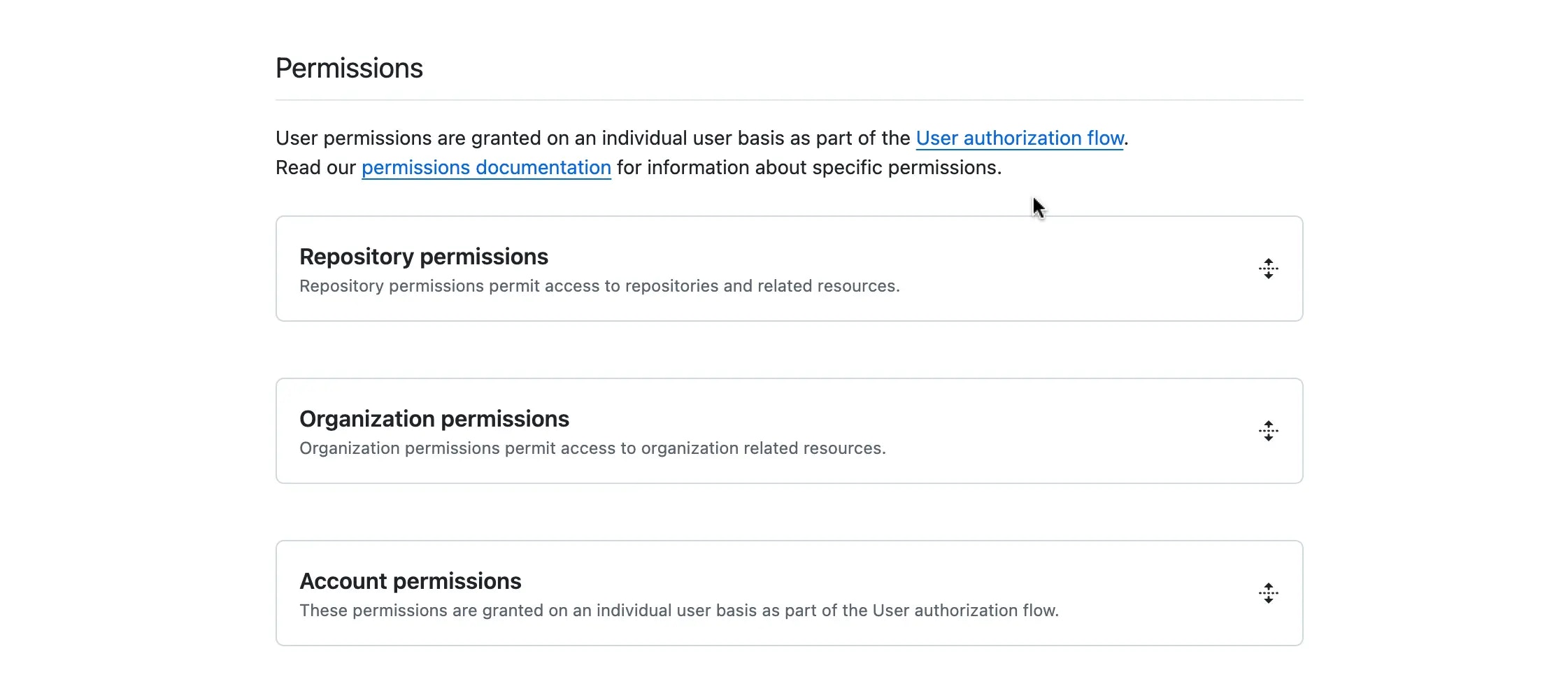
1. Add repository and account permissions by setting the **Access** dropdown next to each permission, as shown in the tables below.
1. Go to **Settings > Developer Settings > GitHub Apps** in your GitHub organization.
2. Click **New GitHub App**.
3. In the **Register new GitHub App** page, provide a **GitHub App name** and **Homepage URL**.
4. In the **Identifying and authorizing users** section, add the following **Callback URLS**.
**For Plane cloud instance**
```bash theme={null}
https://silo.plane.so/api/oauth/github-enterprise/auth/callback
https://silo.plane.so/api/oauth/github-enterprise/auth/user/callback
```
**For Plane self-hosted instance**
```bash theme={null}
https:///silo/api/oauth/github-enterprise/auth/callback
https:///silo/api/oauth/github-enterprise/auth/user/callback
```
These URLs allow Plane to verify and enable workspace connection with the Github App.
5. In the **Post installation** section, add the below **Setup URL**.
**For Plane cloud instance**
```bash theme={null}
https://silo.plane.so/api/oauth/github-enterprise/auth/callback
```
**For Plane self-hosted instance**
```bash theme={null}
https:///silo/api/oauth/github-enterprise/auth/callback
```
Redirects users to this URL after GitHub app installation.
6. Turn on **Redirect on update**.
7. In the **Webhook** section, add the below **Webhook URL**.
**For Plane cloud instance**
```bash theme={null}
https://silo.plane.so/api/github-enterprise/github-webhook
```
**For Plane self-hosted instance**
```bash theme={null}
https:///silo/api/github-enterprise/github-webhook
```
This allows Plane to receive updates from GitHub repositories.
### Set up permissions and events
1. Add repository and account permissions by setting the **Access** dropdown next to each permission, as shown in the tables below.
 **Repository permissions**
| Permission | Access level | Purpose |
| --------------------- | ---------------- | ------------------------------------------------------------------------------------------------ |
| Issues | Read and write | Enables reading, creating, updating, closing, and commenting on issues within the repository. |
| Metadata | Read-only | Provides read-only access to repository metadata, such as its name, description, and visibility. |
| Pull requests | Read and write | Allows reading, creating, updating, merging, and commenting on pull requests. |
**Account permissions**
| Permission | Access level | Purpose |
| -------------------- | ---------------- | -------------------------------------------------------------------------------------- |
| Email addresses | Read-only | Grants access to users' email addresses, typically for notifications or communication. |
| Profile | Read and write | Enables access to user profile details like name, username, and avatar. |
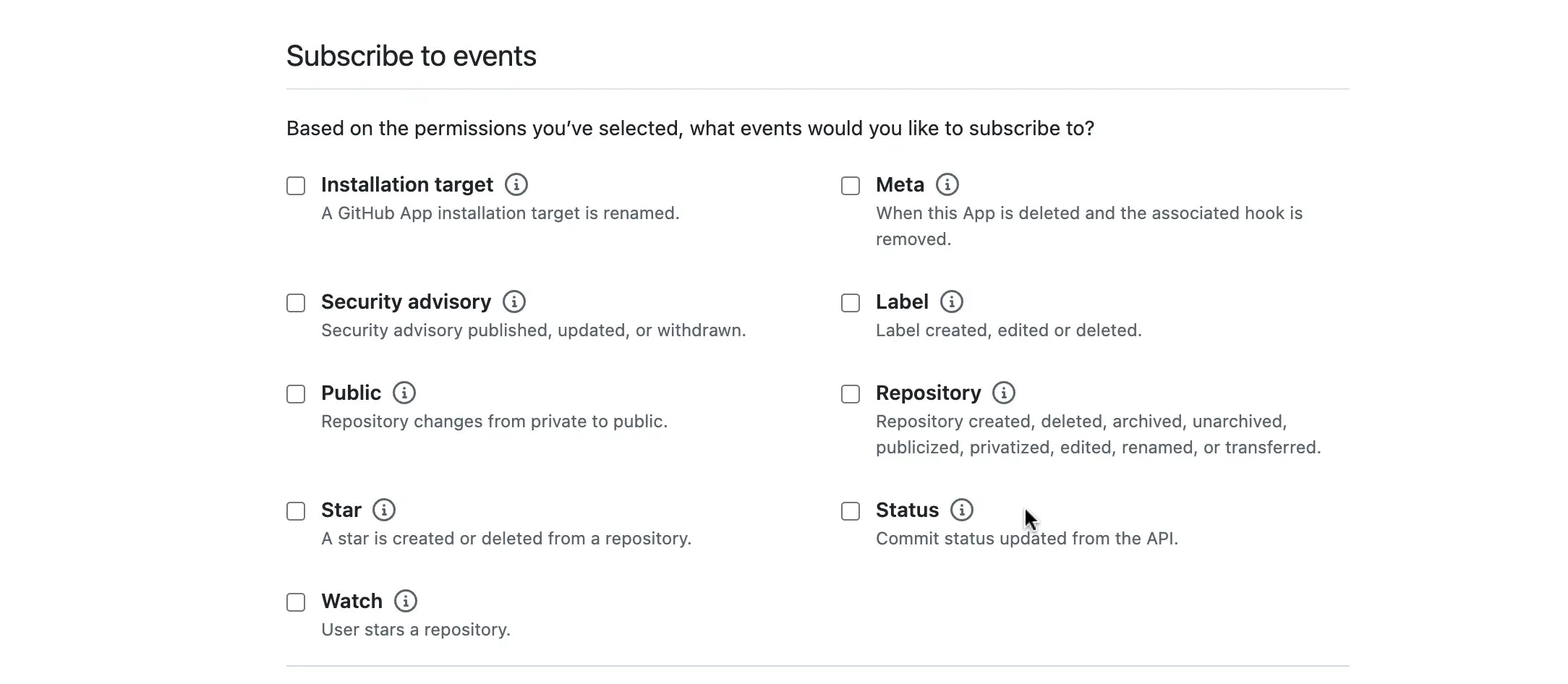
2. In the **Subscribe to events** section, turn on all the required events below.
**Repository permissions**
| Permission | Access level | Purpose |
| --------------------- | ---------------- | ------------------------------------------------------------------------------------------------ |
| Issues | Read and write | Enables reading, creating, updating, closing, and commenting on issues within the repository. |
| Metadata | Read-only | Provides read-only access to repository metadata, such as its name, description, and visibility. |
| Pull requests | Read and write | Allows reading, creating, updating, merging, and commenting on pull requests. |
**Account permissions**
| Permission | Access level | Purpose |
| -------------------- | ---------------- | -------------------------------------------------------------------------------------- |
| Email addresses | Read-only | Grants access to users' email addresses, typically for notifications or communication. |
| Profile | Read and write | Enables access to user profile details like name, username, and avatar. |
2. In the **Subscribe to events** section, turn on all the required events below.
 | Event | Purpose |
| ------------------------------------------------- | ----------------------------------------------------------------------------------------------------------------------------------------------------------------------------- |
| Installation target | This is where the repositories or organizations where your GitHub App is installed. This determines which repositories Plane can sync with. |
| Meta | Includes metadata about the app's configuration and setup. This is essential for maintaining integration stability. |
| Issue comment | Triggers when a comment is added, edited, or deleted on an issue. Useful for keeping comments synced between Plane and GitHub. |
| Issues | Triggers when an issue is created, updated, closed, reopened, assigned, labeled, or transferred. Ensures issue status and details remain consistent between Plane and GitHub. |
| Pull request | Fires when a pull request is opened, closed, merged, edited, or labeled. Essential for tracking development progress. |
| Pull request review | Activates when a review is submitted, edited, or dismissed. Keeps review activities aligned between Plane and GitHub. |
| Pull request review comment | Fires when a review comment is added, modified, or removed. Ensures feedback is reflected across both platforms. |
| Pull request review thread | Triggers when a review discussion thread is resolved or reopened. Helps maintain visibility on code review discussions. |
| Push | Activates when new commits are pushed to a repository. Useful for tracking code updates and changes. |
| Repository sub issues | Tracks issues within a repository that are linked to or managed by another issue. Ensures accurate synchronization of related issues. |
3. Click the **Create GitHub App** button at the bottom of the page.
## Configure Plane instance
1. Go back to **Settings > Developer Settings > GitHub Apps**.
2. Click **Edit** on the GitHub you created.
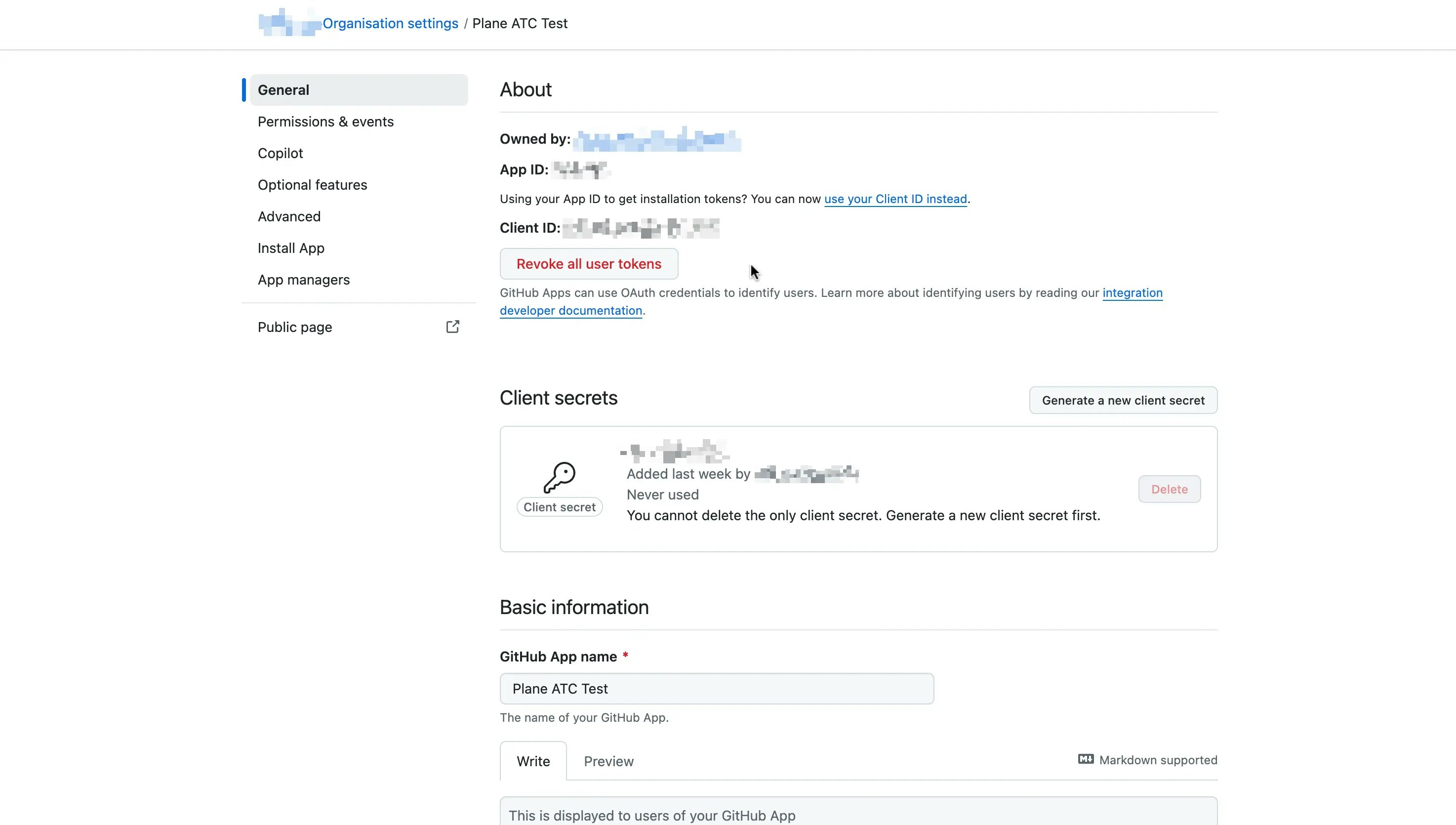
3. In the **General** tab, under the **Client secrets** section, click **Generate a new client secret**.
| Event | Purpose |
| ------------------------------------------------- | ----------------------------------------------------------------------------------------------------------------------------------------------------------------------------- |
| Installation target | This is where the repositories or organizations where your GitHub App is installed. This determines which repositories Plane can sync with. |
| Meta | Includes metadata about the app's configuration and setup. This is essential for maintaining integration stability. |
| Issue comment | Triggers when a comment is added, edited, or deleted on an issue. Useful for keeping comments synced between Plane and GitHub. |
| Issues | Triggers when an issue is created, updated, closed, reopened, assigned, labeled, or transferred. Ensures issue status and details remain consistent between Plane and GitHub. |
| Pull request | Fires when a pull request is opened, closed, merged, edited, or labeled. Essential for tracking development progress. |
| Pull request review | Activates when a review is submitted, edited, or dismissed. Keeps review activities aligned between Plane and GitHub. |
| Pull request review comment | Fires when a review comment is added, modified, or removed. Ensures feedback is reflected across both platforms. |
| Pull request review thread | Triggers when a review discussion thread is resolved or reopened. Helps maintain visibility on code review discussions. |
| Push | Activates when new commits are pushed to a repository. Useful for tracking code updates and changes. |
| Repository sub issues | Tracks issues within a repository that are linked to or managed by another issue. Ensures accurate synchronization of related issues. |
3. Click the **Create GitHub App** button at the bottom of the page.
## Configure Plane instance
1. Go back to **Settings > Developer Settings > GitHub Apps**.
2. Click **Edit** on the GitHub you created.
3. In the **General** tab, under the **Client secrets** section, click **Generate a new client secret**.
 4. Scroll down to the **Private keys** section.
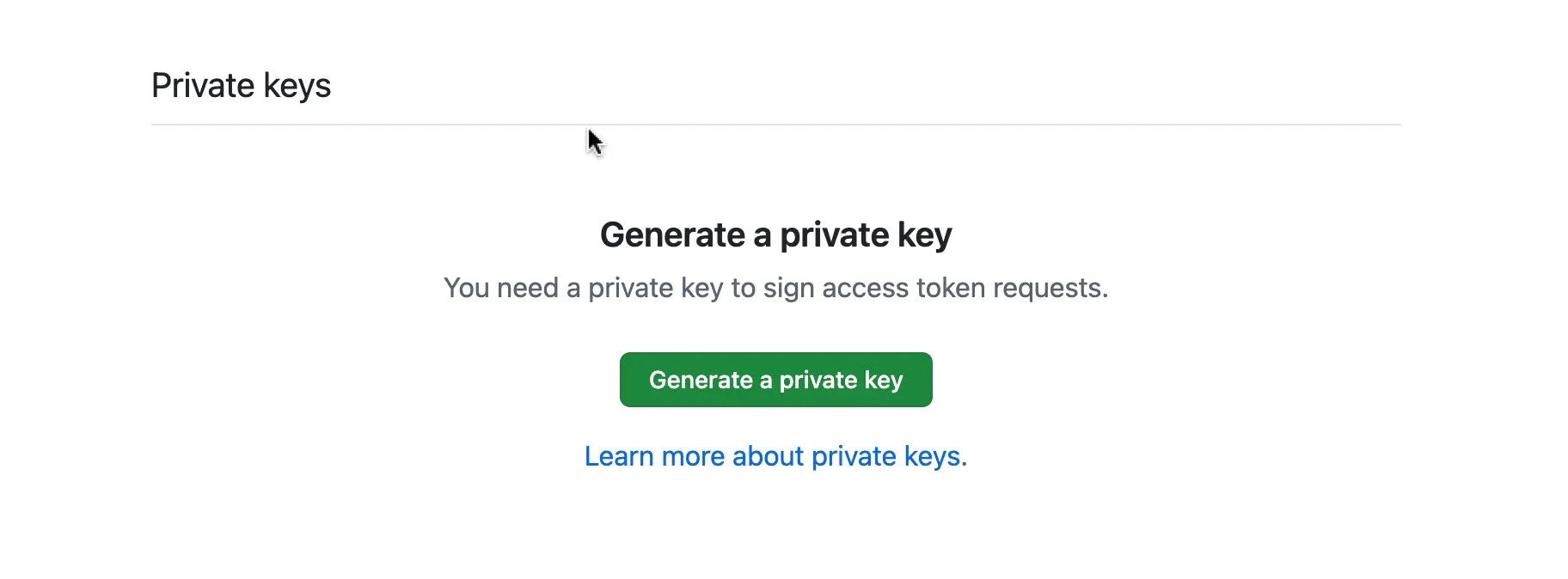 5. Click **Genereate a private key**.
6. Retrieve the following details from the **General** tab:
* App ID
* Client ID
* Client secret
* GitHub App name
* Private key
7. Before adding the Private key as an environment variable, you’ll need to convert it to base64. Since private keys are typically multi-line, they can cause parsing errors or issues when setting environment variables. To avoid this, run the following command to convert the key to base64:
```bash theme={null}
cat private_key.pem | base64 -w 0
```
8. Add these environment variables with the values to your Plane instance's `.env` file.
```bash theme={null}
GITHUB_CLIENT_ID=
GITHUB_CLIENT_SECRET=
GITHUB_APP_NAME=
GITHUB_APP_ID=
GITHUB_PRIVATE_KEY=
```
9. Save the file and restart the instance.
10. Once you've completed the instance configuration, [activate the GitHub integration in Plane](https://docs.plane.so/integrations/github).
1. Go back to **Settings > Developer Settings > GitHub Apps**.
2. Click **Edit** on the GitHub you created.
3. In the **General** tab, under the **Client secrets** section, click **Generate a new client secret**.
4. Scroll down to the **Private keys** section.
5. Click **Generate a private key**.
6. Retrieve the following details from the **General** tab:
* App ID
* App Slug (You can find this in browser url)
* Client ID
* Client secret
* Private key
7. Convert the Private key to convert it to base64. Since private keys are typically multi-line, they can cause parsing errors or issues when setting environment variables. To avoid this, run the following command to convert the key to base64:
```bash theme={null}
cat private_key.pem | base64 -w 0
```
8. Once you've created the app, [activate the GitHub Enterprise integration in Plane](https://docs.plane.so/integrations/github?edition=github-enterprise#connect-github-organization).
## Troubleshooting
### Invalid private key
5. Click **Genereate a private key**.
6. Retrieve the following details from the **General** tab:
* App ID
* Client ID
* Client secret
* GitHub App name
* Private key
7. Before adding the Private key as an environment variable, you’ll need to convert it to base64. Since private keys are typically multi-line, they can cause parsing errors or issues when setting environment variables. To avoid this, run the following command to convert the key to base64:
```bash theme={null}
cat private_key.pem | base64 -w 0
```
8. Add these environment variables with the values to your Plane instance's `.env` file.
```bash theme={null}
GITHUB_CLIENT_ID=
GITHUB_CLIENT_SECRET=
GITHUB_APP_NAME=
GITHUB_APP_ID=
GITHUB_PRIVATE_KEY=
```
9. Save the file and restart the instance.
10. Once you've completed the instance configuration, [activate the GitHub integration in Plane](https://docs.plane.so/integrations/github).
1. Go back to **Settings > Developer Settings > GitHub Apps**.
2. Click **Edit** on the GitHub you created.
3. In the **General** tab, under the **Client secrets** section, click **Generate a new client secret**.
4. Scroll down to the **Private keys** section.
5. Click **Generate a private key**.
6. Retrieve the following details from the **General** tab:
* App ID
* App Slug (You can find this in browser url)
* Client ID
* Client secret
* Private key
7. Convert the Private key to convert it to base64. Since private keys are typically multi-line, they can cause parsing errors or issues when setting environment variables. To avoid this, run the following command to convert the key to base64:
```bash theme={null}
cat private_key.pem | base64 -w 0
```
8. Once you've created the app, [activate the GitHub Enterprise integration in Plane](https://docs.plane.so/integrations/github?edition=github-enterprise#connect-github-organization).
## Troubleshooting
### Invalid private key
Error: Failed to create GitHub connection: Invalid keyData
This error usually occurs when the private key is not correctly generated. To fix this, follow the below steps.
1. Generate a new private key.
2. Convert the private key to base64.
```bash theme={null}
cat private_key.pem | base64 -w 0
```
3. Add the private key to the `.env` file.
```bash theme={null}
GITHUB_PRIVATE_KEY=
```
4. Save the file and restart the instance.
### Unable to connect GitHub organization account or personal account
Error: Invalid request callback URL.
This error usually occurs when the callback URL is not correctly configured or the GitHub App is not marked public. To fix this, follow the below steps.
1. Check if the callback URL is correctly configured.
2. Check if your GitHub App is marked public.
### Application secret value not found
Error: Application secret value not found for key: x-github-id
This error usually occurs when the application secret is not correctly configured. To fix this, follow the below steps.
1. Delete the `plane_app_details_github` key from redis cache. `del plane_app_details_github`.
2. Set the `SILO_BASE_URL` in env with plane self hosted url and restart the api server. `export SILO_BASE_URL=https://`
3. Run this command in api server shell `python manage.py reset_marketplace_app_secrets` to reset the application secrets.
4. Try to connect again to the organization account to Plane.
### Github integration suddenly stopped working after a while
This error usually occurs when the GitHub integration is not correctly configured. To fix this, follow the below steps.
1. Make sure you've `opted out` of Server Token expiration and reconnect once again to the organization account to Plane. Check in Github App Settings > Optional Features