> ## Documentation Index
> Fetch the complete documentation index at: https://developers.plane.so/llms.txt
> Use this file to discover all available pages before exploring further.
# Configure SMTP for email notifications
> Either during your set-up or sometime later, you will want to set SMTP settings to let your users get emails to reset passwords, onboard themselves right, and get notifications for changes, and receive exports of your data.
Plane currently supports SMTP authentication only via email and password. OAuth-based SMTP configurations aren’t supported.
## Configuration
Plane offers an interface to configure Simple Mail Transfer Protocol (SMTP) and SSL for encrypted email communication.
Navigate to `Email` in `/god-mode`and you will see ↓.
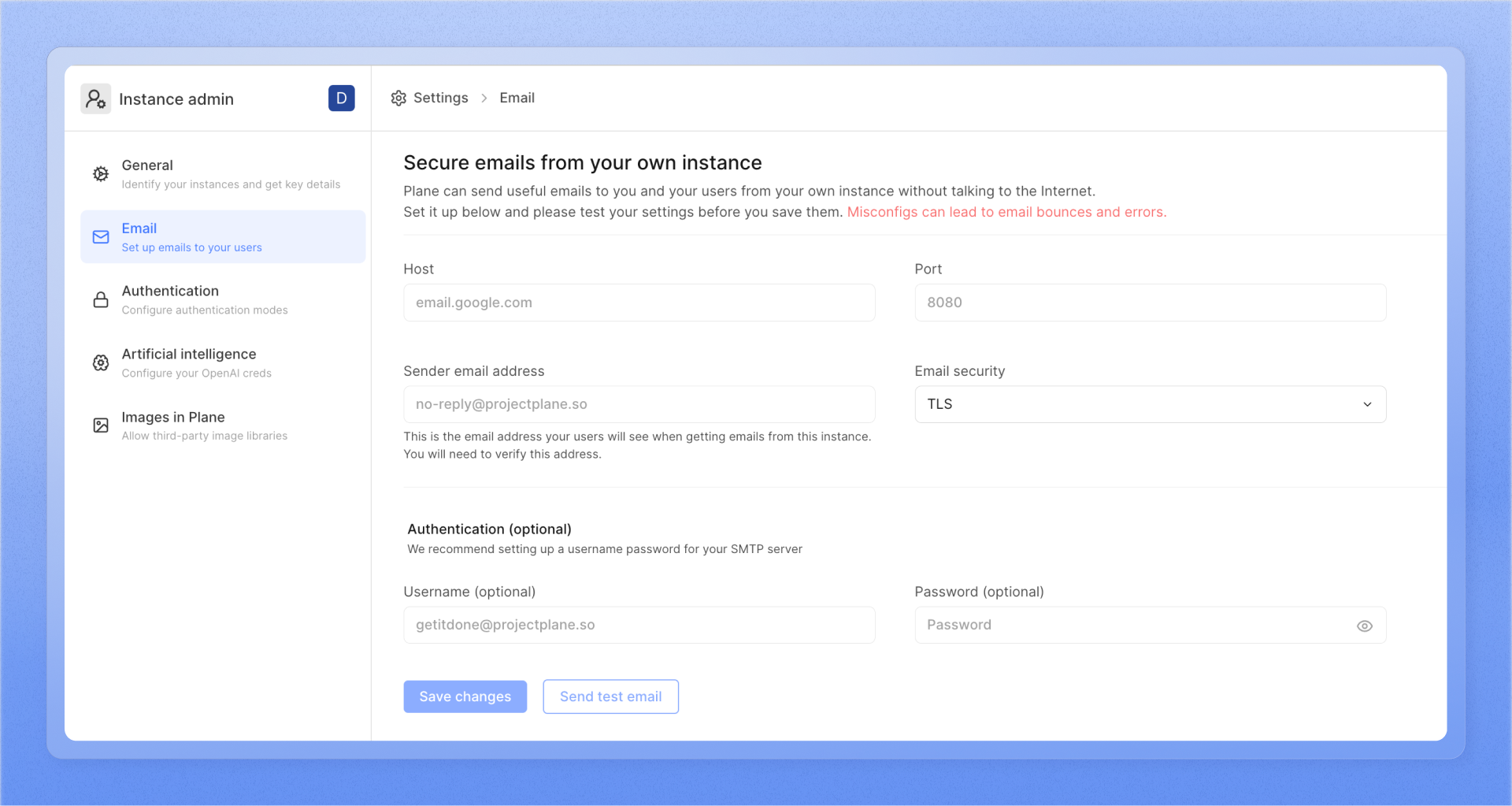 * **Host**\
The address of your SMTP server.
* **Port**\
The port for outgoing emails.
* **Sender email address**\
The email address you wish to use as the sender of emails.
* **Email security**\
Toggle `TLS` or `SSL` as the email security layer for your emails. If you do not wish to use either of them, you can choose the `No email security` option.
* **Authentication**\
You can configure the username and password to authenticate the SMTP server to send emails. It's an optional configuration, but we would advise you to provide authentication details for a secure email delivery experience.
* **Username**\
Specify the username for the SMTP configuration here.
* **Password**\
Specify the password for the SMTP configuration here.
**Google Workspaces**
If your Plane instance is not accessible on the internet, Gmail may block profile photos or other embedded images in email notifications. This occurs because Gmail uses Google's secure image proxy to serve images for security purposes.
To resolve this issue, you must configure the Image URL proxy allowlist in your Google Workspace settings to include your Plane instance's URL. Refer to Google’s documentation for instructions: [Allowlist image URLs](https://support.google.com/a/answer/3299041?hl=en).
## Configuration for popular email services providers
### Amazon SES
1. Sign in to [**https://console.aws.amazon.com/ses**](https://console.aws.amazon.com/ses).
2. Navigate to **SMTP Settings** in the sidebar.
3. Click **Create My SMTP Credentials**.
4. Follow prompts to create a user in the **Create User for SMTP** dialog box, then click **Create**.
5. Select **Show User SMTP Credentials** to view the user's SMTP credentials.
6. Return to your Plane instance's `/god-mode` and enter the obtained details.
Ensure to review [**email quotas**](https://docs.aws.amazon.com/ses/latest/dg/quotas.html) for your Amazon SES server. Consider managing email recipients using groups to optimize usage.
* **Host**\
The address of your SMTP server.
* **Port**\
The port for outgoing emails.
* **Sender email address**\
The email address you wish to use as the sender of emails.
* **Email security**\
Toggle `TLS` or `SSL` as the email security layer for your emails. If you do not wish to use either of them, you can choose the `No email security` option.
* **Authentication**\
You can configure the username and password to authenticate the SMTP server to send emails. It's an optional configuration, but we would advise you to provide authentication details for a secure email delivery experience.
* **Username**\
Specify the username for the SMTP configuration here.
* **Password**\
Specify the password for the SMTP configuration here.
**Google Workspaces**
If your Plane instance is not accessible on the internet, Gmail may block profile photos or other embedded images in email notifications. This occurs because Gmail uses Google's secure image proxy to serve images for security purposes.
To resolve this issue, you must configure the Image URL proxy allowlist in your Google Workspace settings to include your Plane instance's URL. Refer to Google’s documentation for instructions: [Allowlist image URLs](https://support.google.com/a/answer/3299041?hl=en).
## Configuration for popular email services providers
### Amazon SES
1. Sign in to [**https://console.aws.amazon.com/ses**](https://console.aws.amazon.com/ses).
2. Navigate to **SMTP Settings** in the sidebar.
3. Click **Create My SMTP Credentials**.
4. Follow prompts to create a user in the **Create User for SMTP** dialog box, then click **Create**.
5. Select **Show User SMTP Credentials** to view the user's SMTP credentials.
6. Return to your Plane instance's `/god-mode` and enter the obtained details.
Ensure to review [**email quotas**](https://docs.aws.amazon.com/ses/latest/dg/quotas.html) for your Amazon SES server. Consider managing email recipients using groups to optimize usage.